
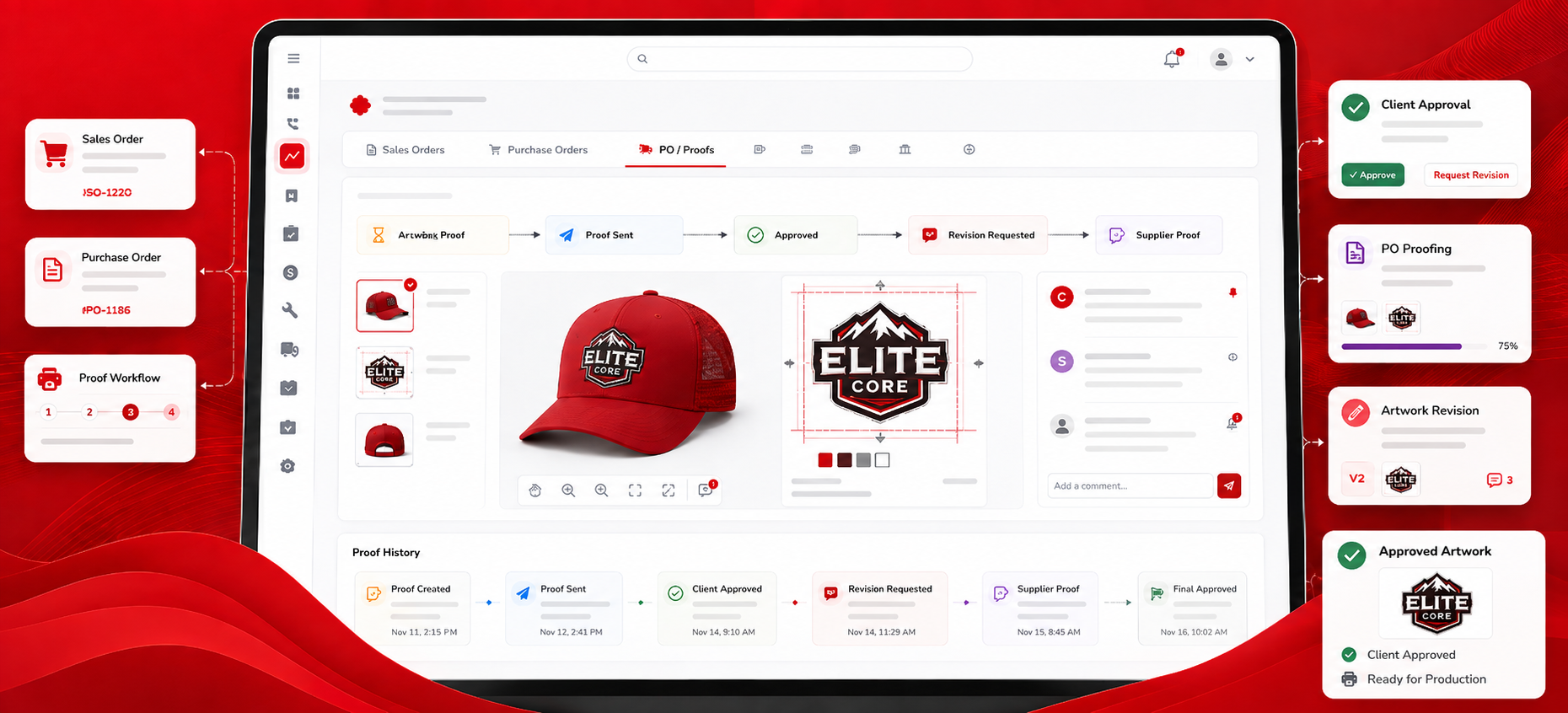
Proofing in Elite Core can begin before Purchase Orders are created and continue after purchasing has started. Sales Order proofs and Purchase Order proofs support the same overall approval process, but they enter the workflow at different stages.
A Sales Order proof provides earlier artwork and approval context while the order is still being reviewed or prepared for purchasing. A Purchase Order proof is commonly added later when a supplier, decorator or internal production department provides a production-ready proof.
Understanding where a proof was added helps users confirm which product or decoration it belongs to, which Purchase Order should display it, whether it has been sent to the customer, and which version is currently approved.
The Core Rule
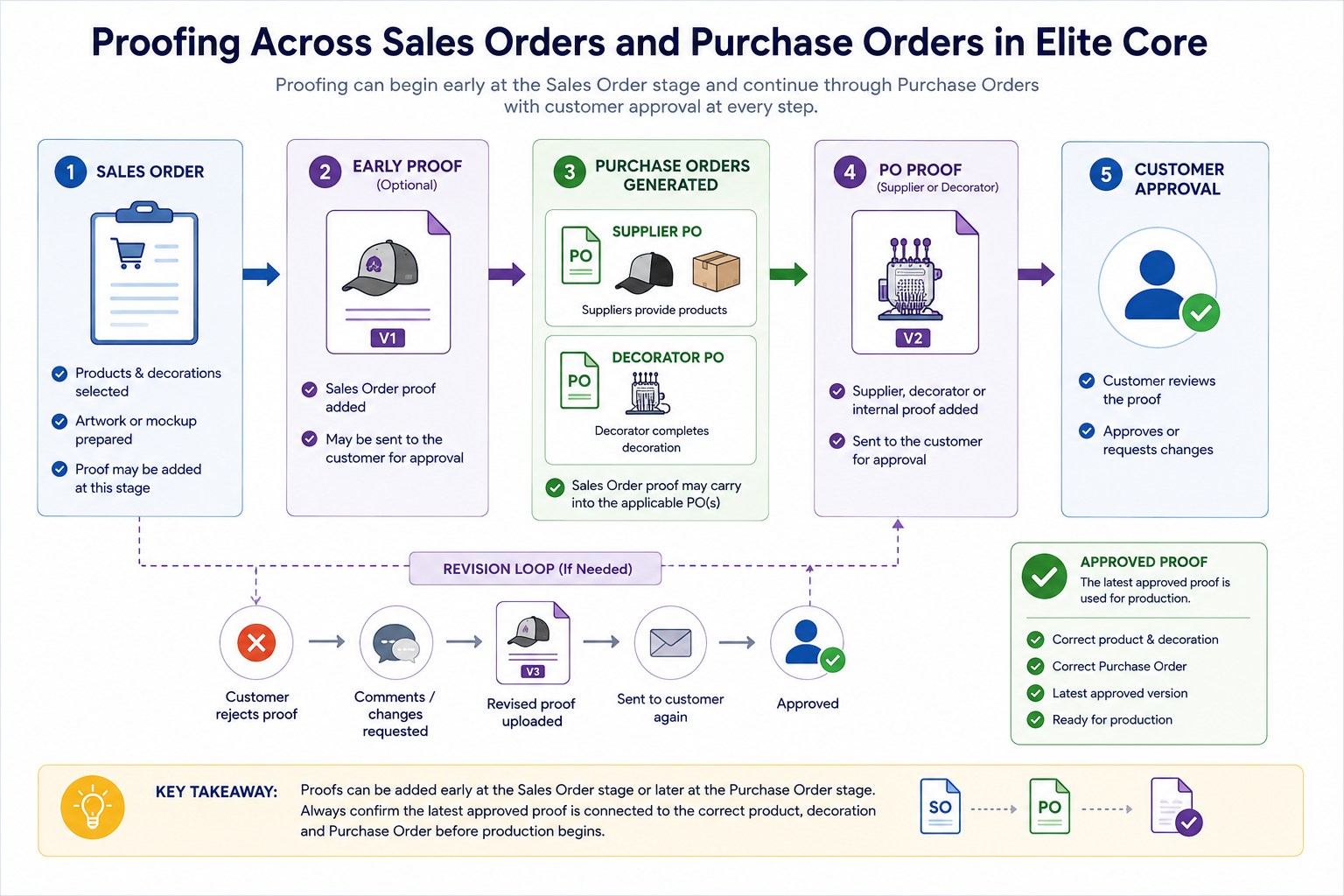
A proof should be attached at the stage where it becomes available, but it must remain connected to the correct product, decoration and Purchase Order throughout the workflow.
The most important checks are:
- The proof belongs to the correct project and product
- The proof is connected to the correct decoration or Purchase Order
- The customer receives the current proof version
- Approval or rejection is recorded against the correct version
- Production uses the latest approved proof
A Sales Order approval does not necessarily approve a later supplier or decorator production proof. Each proof should be reviewed according to its own purpose and version.
Two Proofing Stages in Elite Core
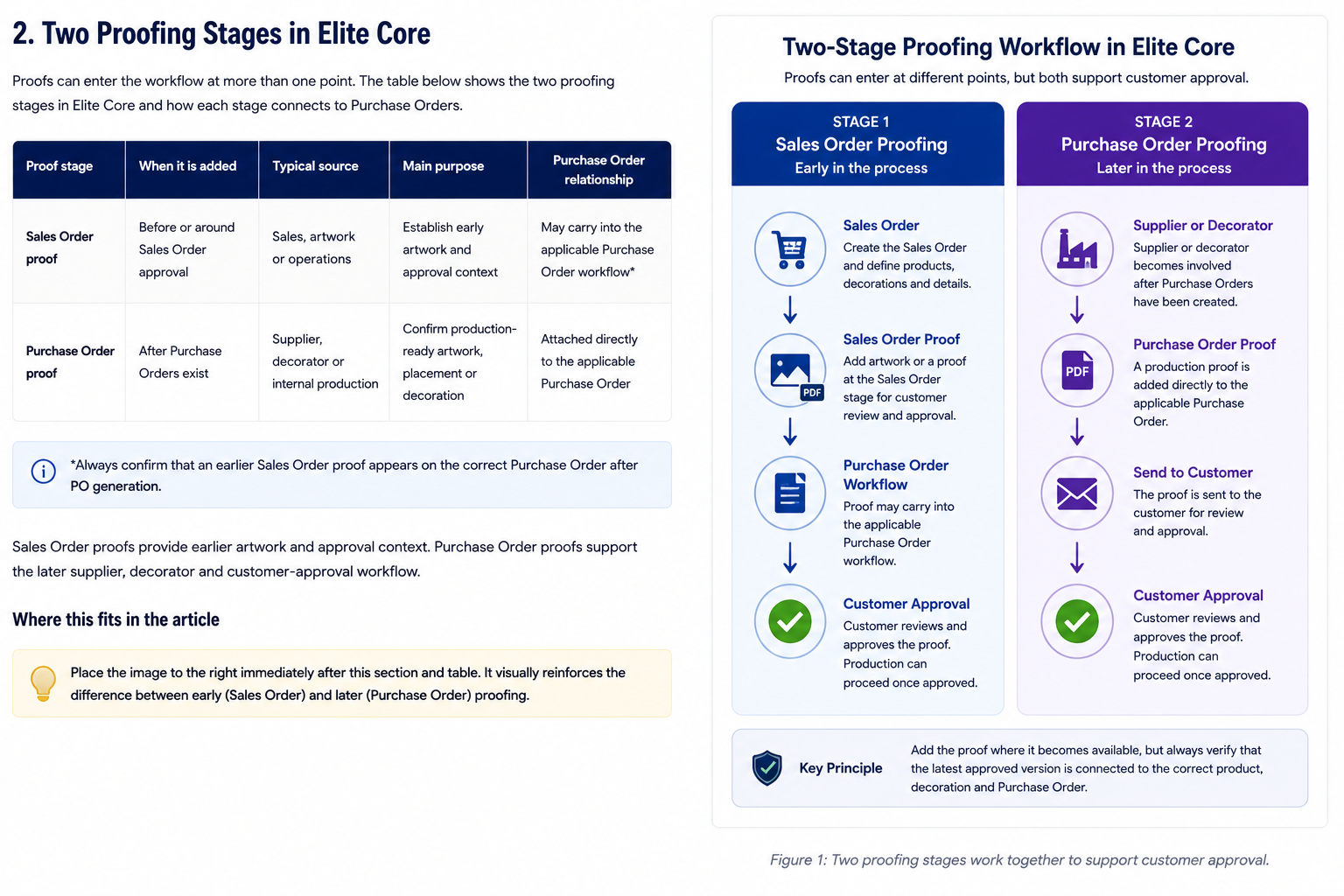
| Proof stage | When it is added | Typical source | Main purpose | Purchase Order relationship |
|---|---|---|---|---|
| Sales Order proof | Before or around Sales Order approval | Sales, artwork or operations | Establish early artwork and approval context | May carry into the applicable Purchase Order workflow |
| Purchase Order proof | After Purchase Orders exist | Supplier, decorator or internal production | Confirm production-ready artwork, placement or decoration | Attached directly to the applicable Purchase Order |
Sales Order Proofs
A Sales Order proof is useful when artwork or a customer-facing visual already exists before Purchase Orders are generated.
It may be added when:
- Artwork has already been prepared
- The customer must approve the design before purchasing begins
- Sales needs to retain a visual record of what was sold
- The same proof should remain available to purchasing and production
- A product or decoration needs early clarification
A Sales Order proof may represent:
- Logo placement
- Decoration dimensions
- Decoration colours
- Product colour
- Personalization
- Names or numbers
- Award or engraving layouts
- Packaging artwork
- A general product mockup
Where the current interface supports it, associate the proof with the specific product or decoration rather than storing it only as a general project file.
Purchase Order Proofs
A Purchase Order proof is normally added after a supplier, decorator or internal production department becomes involved.
Common Purchase Order proofs include:
- Embroidery sew-outs
- Screen-print proofs
- Laser engraving layouts
- Award plate layouts
- Digital imprint proofs
- Product mockups
- Personalization lists
- Packaging proofs
- Supplier production proofs
These proofs may be more specific than an earlier Sales Order proof because they reflect the actual production method, supplier requirements and decoration route.
How Sales Order Proofs Carry Into Purchase Orders
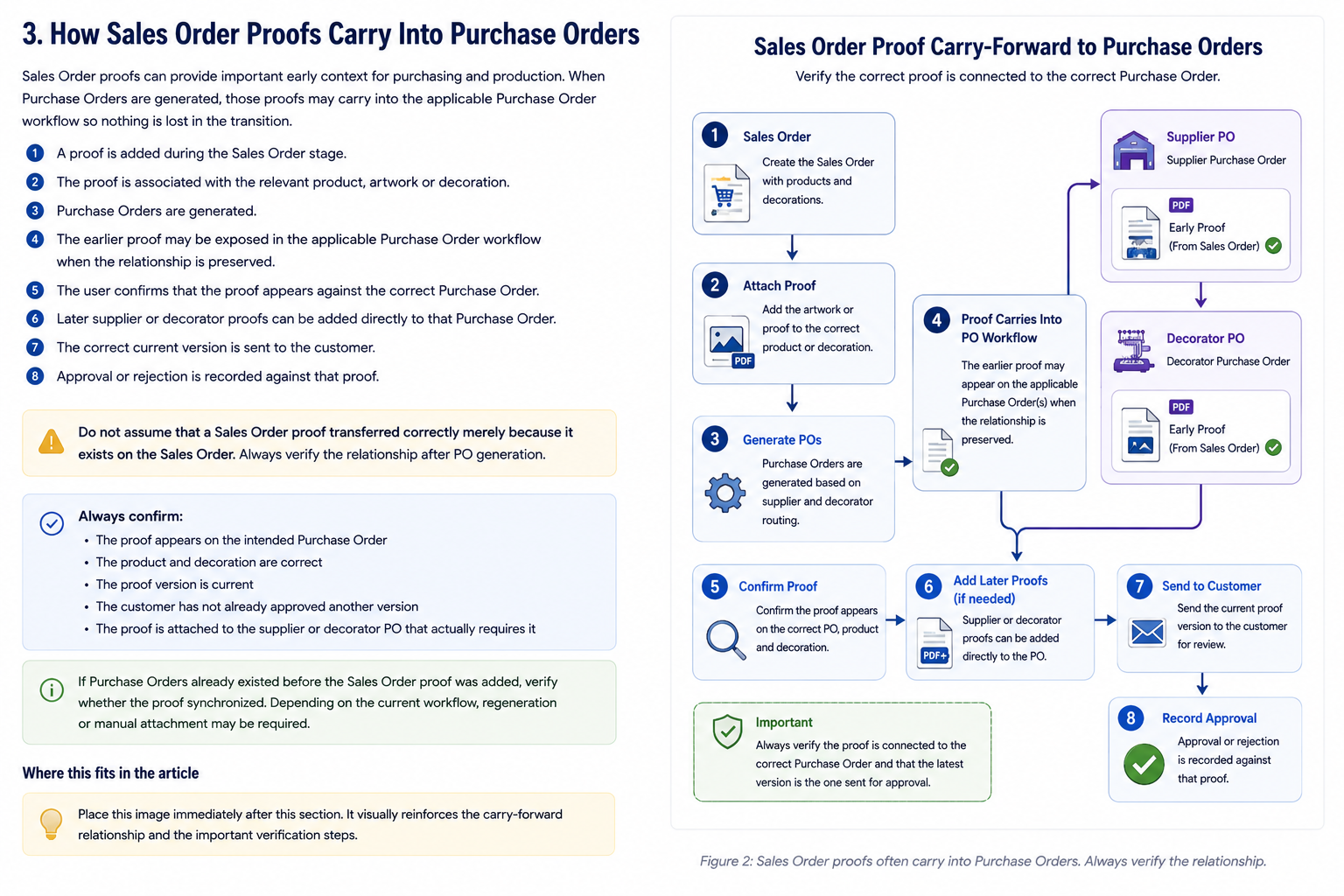
- A proof is added during the Sales Order stage.
- The proof is associated with the relevant product, artwork or decoration.
- Purchase Orders are generated.
- The earlier proof may be exposed in the applicable Purchase Order workflow when the relationship is preserved.
- The user confirms that the proof appears against the correct Purchase Order.
- Later supplier or decorator proofs can be added directly to that Purchase Order.
- The correct current version is sent to the customer.
- Approval or rejection is recorded against that proof.
Do not assume that a Sales Order proof transferred correctly merely because it exists on the Sales Order.
Always confirm:
- The proof appears on the intended Purchase Order
- The product and decoration are correct
- The proof version is current
- The customer has not already approved another version
- The proof is attached to the supplier or decorator PO that actually requires it
If Purchase Orders already existed before the Sales Order proof was added, verify whether the proof synchronized. Depending on the current workflow, regeneration or manual attachment may be required.
When to Add a Proof at the Sales Order Stage
Add the proof at the Sales Order stage when:
- The artwork exists before PO generation
- Customer approval is needed before purchasing
- The proof represents the agreed customer-facing design
- The proof should remain connected to the original Sales Order context
- Purchasing and production will need the earlier artwork context later
Do not use the Sales Order stage merely to avoid attaching a later supplier-specific or decorator-specific proof to the proper Purchase Order.
When to Add a Proof at the Purchase Order Stage
Add the proof to the Purchase Order when:
- It comes from the supplier
- It comes from the decorator
- It relates to one specific Purchase Order
- It was created after purchasing began
- It is a production proof
- It revises or replaces an earlier proof
- Approval is required before the supplier or decorator proceeds
Proof Sources
| Source | Typical stage | Example | Where to attach |
|---|---|---|---|
| Customer | Sales Order or Purchase Order | Customer-supplied approved artwork | Correct product or proof record |
| Sales representative | Sales Order | Early mockup or artwork | Sales Order proof area |
| Artwork department | Sales Order or Purchase Order | Prepared customer proof | Relevant product, decoration or PO |
| Supplier | Purchase Order | Supplier production proof | Supplier PO |
| Decorator | Purchase Order | Decoration proof | Decorator PO |
| Internal production department | Purchase Order | Embroidery, engraving or award proof | Internal decorator or production PO |
Proof Statuses
Use the available proof status to describe the current version accurately. Depending on the current Elite Core interface, statuses may distinguish proofs that are needed, awaiting customer approval, approved, rejected or undergoing revision.
The practical status should answer three questions:
- Has the current proof been sent?
- Has the customer approved or rejected it?
- Is another version required?
Do not leave an older proof marked as the active approved version after a revised file has been introduced.
Sending a Proof to the Customer
- Open the relevant Sales Order or Purchase Order proof area.
- Confirm the correct proof file.
- Confirm the product, decoration and Purchase Order.
- Review the customer contact.
- Review the email subject and message.
- Confirm which files will be included.
- Send the proof.
- Confirm that the send was recorded.
- Confirm that the proof status changed as expected.
- Monitor for approval, rejection or revision feedback.
Do not send:
- An internal production file not intended for the customer
- An outdated proof
- A proof for the wrong product or decoration
- A supplier proof before internal review
- Multiple conflicting versions
- A proof to the wrong customer contact
Customer Approval
Customer approval should identify the exact proof version and the details being approved.
Confirm:
- Product
- Decoration method
- Placement
- Colours
- Dimensions
- Personalization
- Special instructions
- Proof version
Approval of one proof does not automatically approve another product, decoration or Purchase Order. Approval of an early Sales Order mockup also does not necessarily replace approval of a later production proof.
Customer Rejection and Revision Requests
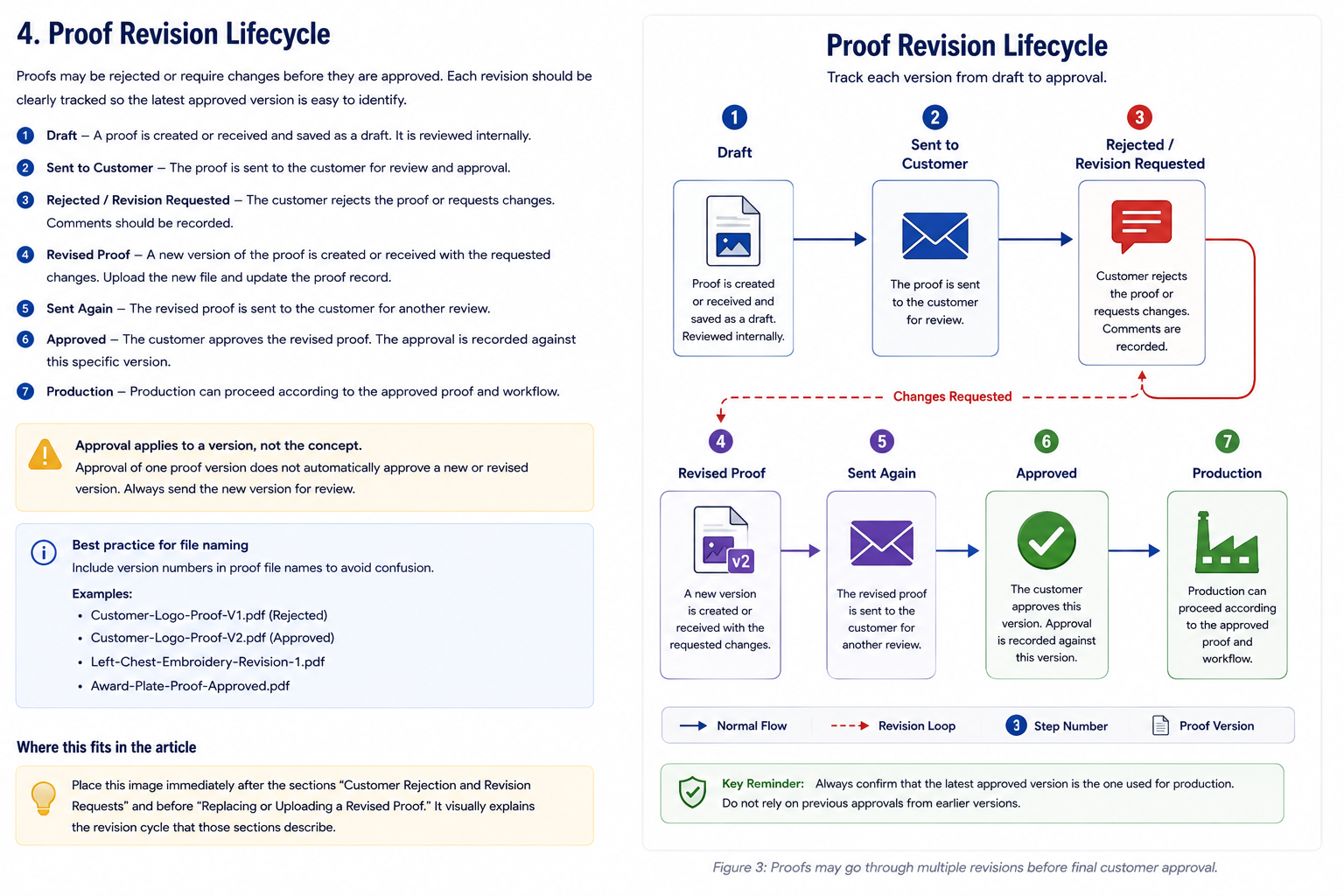
- Record the rejection or revision request.
- Preserve the customer’s comments.
- Confirm which proof version was rejected.
- Notify the responsible supplier, decorator or production department.
- Obtain or prepare a revised proof.
- Upload the revised version.
- Send the revised version to the customer.
- Wait for approval.
- Do not proceed with production when approval is still required.
Where proof history is available, retain rejected versions so the sequence of changes remains clear.
Replacing or Uploading a Revised Proof
Use clear file names that distinguish each version.
Recommended examples:
- Customer-Logo-Proof-V1.pdf
- Customer-Logo-Proof-V2.pdf
- Left-Chest-Embroidery-Revision-1.pdf
- Award-Plate-Proof-Approved.pdf
Avoid vague names such as:
- final.pdf
- final-final.pdf
- proof-new.pdf
- updated.pdf
- latest.pdf
After uploading a revision, confirm whether Elite Core added a new proof record or replaced the existing file. Then confirm which version is marked current.
Proof History and Version Control
Proof history should help users determine:
- Which proof was sent
- When it was sent
- Who received it
- Whether it was approved or rejected
- What comments were received
- Which revision replaced it
- Which version is currently approved
Attaching a revised file without updating its status or preserving the approval history can create production risk.
Multiple Purchase Orders and Multiple Proofs
One Sales Order can produce several Purchase Orders, including supplier POs, decorator POs and separate POs for different products or departments.
For example, a project may contain:
- Jackets from a goods supplier
- Embroidery by Elite Decorations
- Awards from an internal awards department
Possible proof records include:
- Jacket artwork proof
- Embroidery placement proof
- Award plate proof
Approval of the jacket proof does not automatically approve the embroidery placement or award plate.
Supplier Proofs Versus Decorator Proofs
| Proof type | Usually relates to | Recommended PO |
|---|---|---|
| Supplier proof | Supplier decoration, manufacturing or product configuration | Supplier Purchase Order |
| Decorator proof | Decoration placement, process, artwork or production | Decorator Purchase Order |
When the goods supplier and decorator are different, the decoration proof normally belongs to the decorator PO rather than the goods supplier PO.
Internal Decoration Proofs
An internal Elite decoration department can still function as a decorator in the proof workflow. Internal work should not bypass proof review or customer approval merely because the decorator is part of Elite.
Attach the proof to the internal decorator Purchase Order or related proof workflow used by the department, and confirm that the production team can identify the approved version.
Proofs Added Before Purchase Order Generation
Before generating Purchase Orders, confirm:
- The proof is saved
- The correct product is selected
- The correct decoration is selected
- The artwork file is current
- The approval status is clear
- The proof is intended to carry forward
- No duplicate proof exists
- The proof is not stored only as an unrelated project file
Proofs Added After Purchase Order Generation
When a supplier or decorator sends a proof later:
- Open the correct Purchase Order.
- Attach the proof.
- Confirm the product and decoration.
- Review the proof internally.
- Send it to the customer.
- Record approval or rejection.
- Upload revisions when required.
- Confirm that production can proceed.
Regenerating Purchase Orders After Proof Changes
Not every proof change necessarily requires Purchase Order regeneration.
Proof-only changes
- New proof file
- Customer approval
- Customer rejection
- Revised artwork file
Purchase Order content changes
- Product changed
- Quantity changed
- Decoration changed
- Decorator changed
- Shipping route changed
- Purchase Order instructions changed
A proof-only change may update the proof workflow without changing the PO document. Changes to the product, decoration, routing or instructions may require regeneration. Review the current document before regenerating unnecessarily.
Common Proofing Scenarios
Example 1: Sales Order Proof Added Before Purchase Orders
Artwork is prepared during the Sales Order stage and approved by the customer before Purchase Orders are generated.
Expected result: The earlier artwork and approval context remains available, and the user confirms that the correct proof appears in the applicable PO workflow.
Example 2: Supplier Sends a New Proof After PO Generation
A supplier sends a production proof after its Purchase Order already exists. The proof is attached to the supplier PO, reviewed internally and sent to the customer.
Expected result: Customer approval is recorded against the supplier proof before the supplier proceeds.
Example 3: Decorator Sends a Revised Proof
A decorator proof is rejected because the customer requests a placement change. The decorator sends revision two, which is uploaded and sent again.
Expected result: Revision one remains rejected, revision two becomes the current approved proof, and production uses revision two.
Example 4: One Sales Order Creates Multiple Purchase Orders
One supplier PO and one decorator PO require different proof records.
Expected result: Each proof remains attached to its proper PO, and approval of one does not approve the other.
Example 5: Proof Added to the Sales Order After POs Already Exist
A Sales Order proof is added after Purchase Orders were generated.
Expected result: The user verifies whether the proof synchronized. Manual attachment or regeneration may be required depending on the current relationship and document state.
Troubleshooting Missing Sales Order Proofs
Check whether:
- The proof was saved
- It was attached to the correct product
- It was attached to the correct decoration
- It was added after Purchase Orders were generated
- The Purchase Order workflow synchronized
- The file exists only in general project files
- The proof record was removed or made inactive
- The correct Sales Order and project are open
Troubleshooting Missing Purchase Order Proofs
Check whether:
- The correct PO is open
- The supplier PO was used instead of the decorator PO
- The decorator PO was used instead of the supplier PO
- The file upload completed
- The proof status was updated
- The product or decoration relationship is present
- The user has permission
- The PO status allows changes
- The PO reflects the current document state
- Regeneration is required
Troubleshooting Old or Incorrect Proofs
Stop and review the proof history when:
- The customer sees an old proof
- An older proof remains marked approved
- A new revision is present but not current
- The wrong file was sent
- The proof belongs to another product
- Approval was recorded against the wrong version
- Several files have similar names
- The Purchase Order displays old artwork
Do not proceed with production when the approved proof version cannot be identified confidently.
Before Sending a Proof
- Confirm the correct project.
- Confirm the correct Sales Order or Purchase Order.
- Confirm the correct product.
- Confirm the correct decoration.
- Confirm the correct proof version.
- Confirm the proof was reviewed internally.
- Confirm the customer contact.
- Confirm the email wording.
- Confirm the approval deadline.
- Confirm no conflicting proof is already pending.
- Confirm the send is recorded.
- Confirm the proof status is updated.
Recommended Proofing Strategy
Use Sales Order proofs when:
- Proofing begins early
- Artwork exists before purchasing
- Customer approval is needed before PO generation
- The proof should carry forward as context
Use Purchase Order proofs when:
- The proof comes from a supplier
- The proof comes from a decorator
- The proof relates to a specific PO
- The proof is created after PO generation
- A production-specific approval is needed
Use both when:
- An early Sales Order proof establishes the approved concept
- A later supplier or decorator proof confirms production execution
Practical Rule
Add the proof where it becomes available, but always verify that the latest approved version is connected to the correct product, decoration and Purchase Order before production begins.
Quick Reference
| Question | Recommended action |
|---|---|
| Proof exists before PO generation? | Add it at the Sales Order stage and verify that it carries forward |
| Supplier sends a proof after PO generation? | Attach it to the supplier PO |
| Decorator sends a proof? | Attach it to the decorator PO |
| Customer rejects the proof? | Record the rejection, preserve comments and upload a revision |
| New proof version uploaded? | Confirm the old approval does not apply to the new version |
| Multiple POs exist? | Confirm each proof belongs to the correct PO |
| Proof missing from a PO? | Check timing, product relationship, decoration relationship and synchronization |
| PO content changed? | Review whether PO regeneration is required |
| Proof only changed? | Review proof history before regenerating the PO unnecessarily |