

Shipping costs should be added to the cart whenever the client needs to be charged for freight, courier, delivery, or another shipping-related service. In Elite Core, shipping is added through the cart as an Other Service, which allows the charge to be included with the rest of the project pricing and reflected on the Sales Order.
The correct process depends on where the project is in its workflow. If the project is still being quoted or prepared, shipping can be added directly to the current cart. If the project has already moved into production and a Sales Order has been generated, the Sales Order cart must first be unlocked before the shipping charge is added.
The Core Rule
Shipping charges should always be added to the version of the cart that is currently controlling the Sales Order.
Adding a shipping charge somewhere else in the project does not automatically guarantee that an already-generated Sales Order will update. When a Sales Order already exists, the updated cart information must be incorporated into that Sales Order before the change can be relied on for client billing, purchasing, or production.
Adding Shipping to a Cart
For a project that has not yet progressed into a locked production-stage Sales Order, shipping can be added directly from the cart.
Open the applicable project and navigate to the cart. Within the cart, open Other Services and select the option used for Shipping.
Enter the applicable shipping charge based on the information available for the order. The amount may represent a confirmed shipping cost, a client-facing freight charge, or an estimated shipping amount depending on the stage of the project and the information available from the supplier or carrier.
Before saving the charge, confirm that the shipping amount belongs to the correct project and that it reflects what the client should actually be charged. Shipping should not be entered as an unrelated product line simply to make the total correct. Using Other Services > Shipping keeps the charge identified correctly within the project.
After adding the shipping service, review the cart totals to make sure the charge is included and that the updated selling total is correct.
If the Sales Order has not yet been generated, the shipping charge should then flow into the Sales Order when the order is created from the current cart information.
Adding Shipping After the Project Has Reached Production
The process is different when the project has already reached the production stage and a Sales Order has already been generated.
At this point, the existing Sales Order represents a captured version of the order. Simply changing another part of the project does not necessarily update that existing Sales Order.
Open the Sales Order and unlock the Sales Order cart so that the underlying order information can be edited.

Once the Sales Order cart is unlocked, open the cart and navigate to Other Services > Shipping. Add the required shipping charge and confirm that the amount is correct.
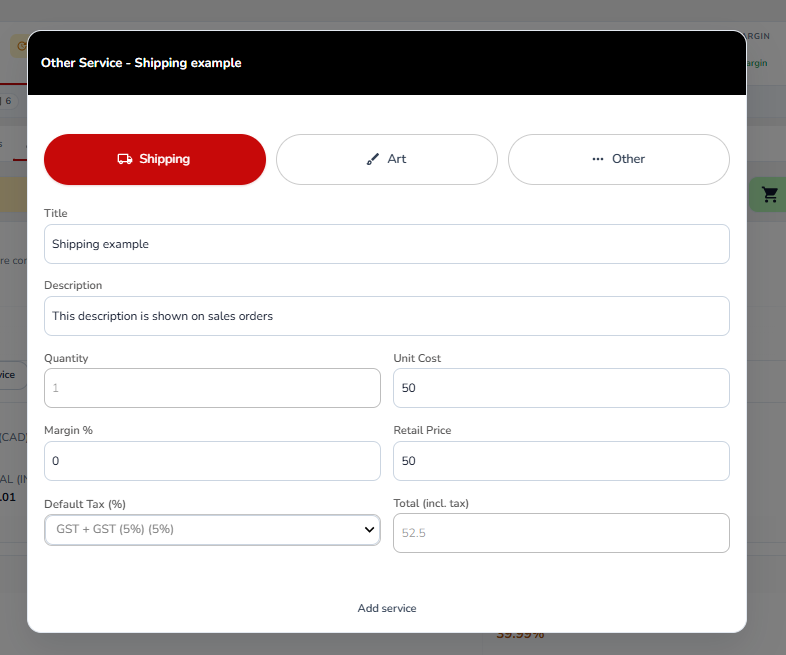
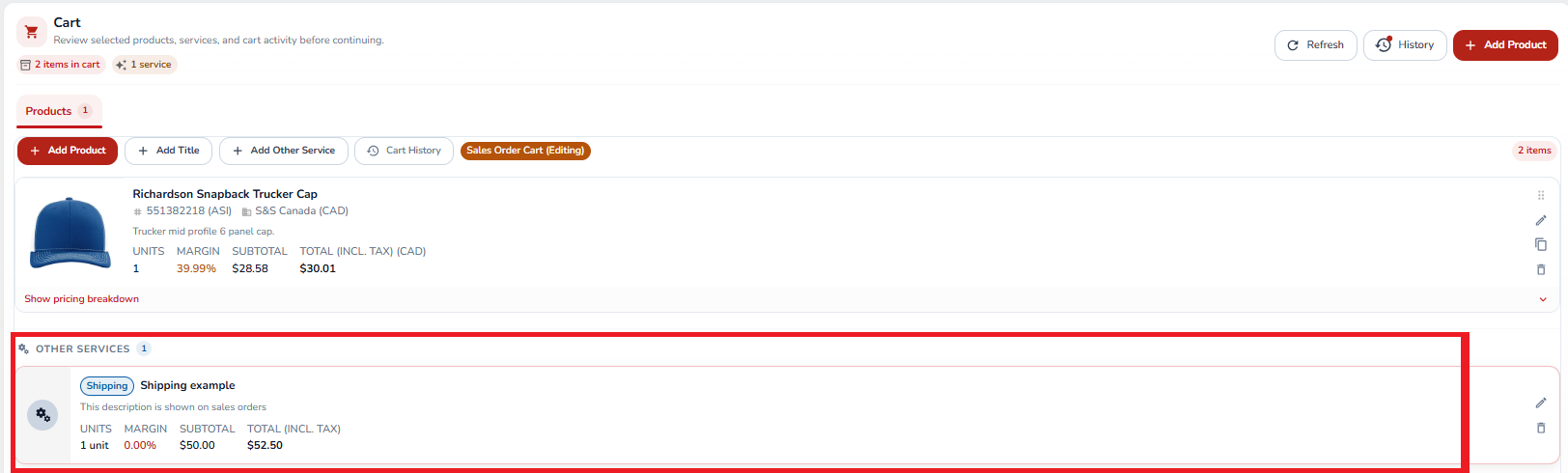
After the shipping charge has been added, review the Sales Order cart carefully. Make sure the new shipping service appears in the correct location and that the updated totals reflect the intended client charge.
The Sales Order must then be regenerated so that the newly added shipping charge is incorporated into the current Sales Order document and order state.
It is important to note that saving the shipping line alone has not updated the Sales Order. The regeneration step is what ensures that the Sales Order reflects the revised cart.
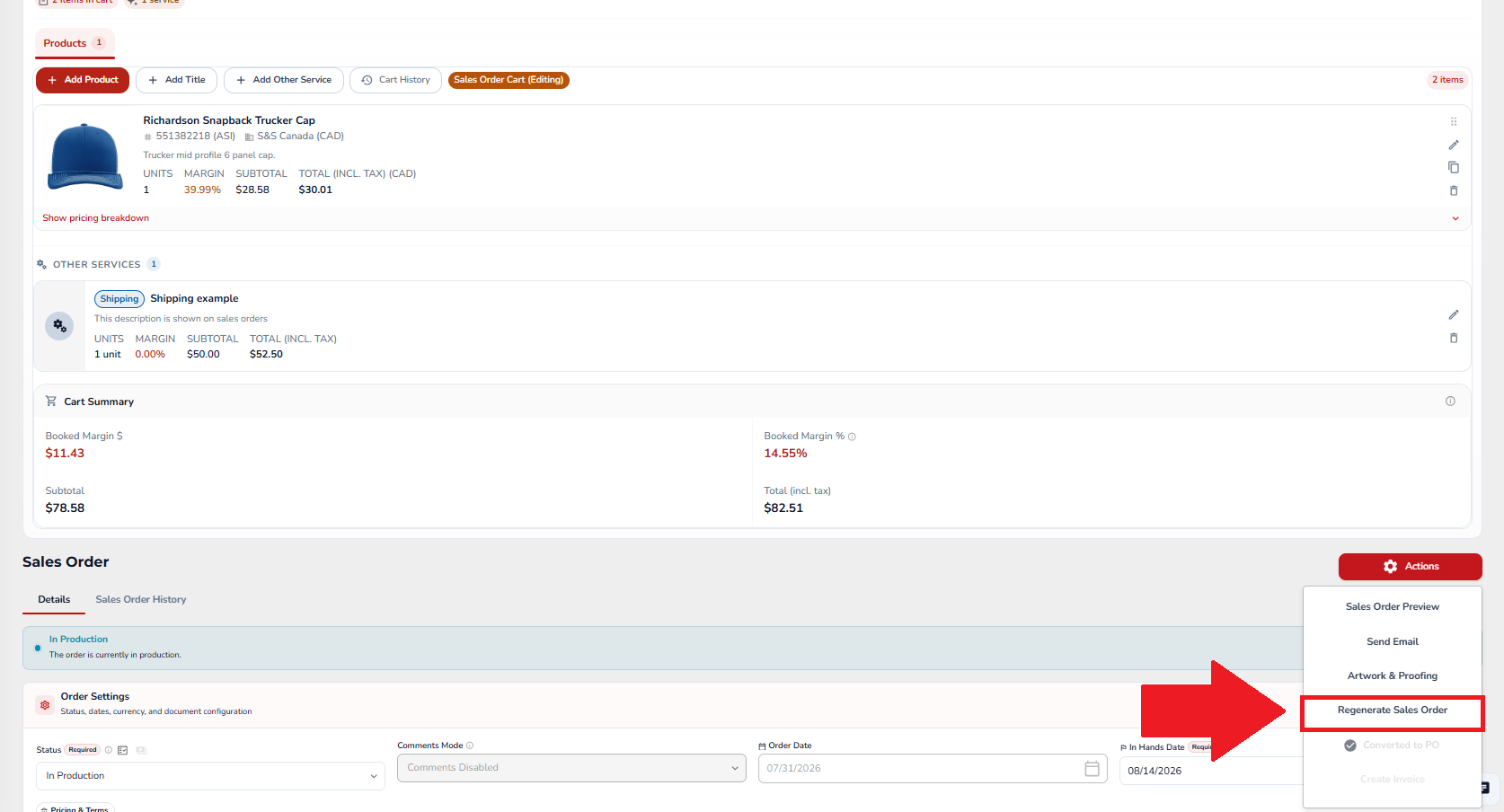
After regeneration, review the Sales Order again and confirm that the shipping charge appears correctly before relying on the updated document.
Do Purchase Orders Need to Be Regenerated?
Adding a client-facing shipping charge does not automatically mean that every Purchase Order must be regenerated.
The important question is whether the changes made while the Sales Order cart was unlocked affected information that is also used to generate Purchase Orders.
For example, if the only change was adding a client-facing shipping service and no supplier routing, product information, decorator information, quantities, costs, required dates, or shipping destinations were changed, the existing Purchase Orders may not require regeneration.
However, the Sales Order should be reviewed for any additional changes made at the same time.
If a related change affects the information used by a supplier or decorator Purchase Order, the existing Purchase Orders should be reviewed to determine whether they still match the current Sales Order.
Changes that may affect PO output can include supplier assignments, product quantities, supplier shipping destinations, decorator routing, decoration requirements, required dates, shipping instructions, or other purchasing information.
If those details changed, the applicable Purchase Orders may need to be regenerated so that purchasing and production are working from the same current information as the Sales Order.
Before regenerating a Purchase Order, confirm whether it has already been sent to the supplier or decorator, acknowledged, placed into production, billed, received, or otherwise used operationally. A PO that has already progressed through the workflow may require a controlled revision rather than simple regeneration.
Example
Suppose a project has already reached production and the salesperson realizes that a $75 freight charge was not included on the Sales Order.
The salesperson should open the Sales Order, unlock its cart, navigate to Other Services > Shipping, and add the $75 charge.
The Sales Order should then be regenerated so that the $75 shipping amount appears on the current Sales Order.
If nothing else about the supplier, products, quantities, decoration, or physical shipping route changed, the supplier Purchase Order may not need to be regenerated.
If the salesperson also changed the supplier Ship To destination while the cart was unlocked, the related Purchase Order should be reviewed because that change may affect the actual purchasing and shipping instructions.
Before Finishing
After adding or changing shipping, verify that the amount is correct, the Sales Order reflects the new charge, and the client total is accurate.
For production-stage projects, also confirm that the Sales Order was regenerated after the cart change.
Finally, review any existing Purchase Orders whenever the Sales Order change involved more than the client-facing shipping amount. Purchase Orders should continue to match the current operational routing and purchasing information for the order.
Practical Rule
If the project has not yet reached production, add shipping through Cart > Other Services > Shipping.
If the project is already in production, unlock the Sales Order cart, add the shipping charge through Other Services > Shipping, and regenerate the Sales Order.
Then review the existing Purchase Orders and regenerate them only when the related Sales Order changes could affect what the supplier or decorator is expected to provide, decorate, or ship.