
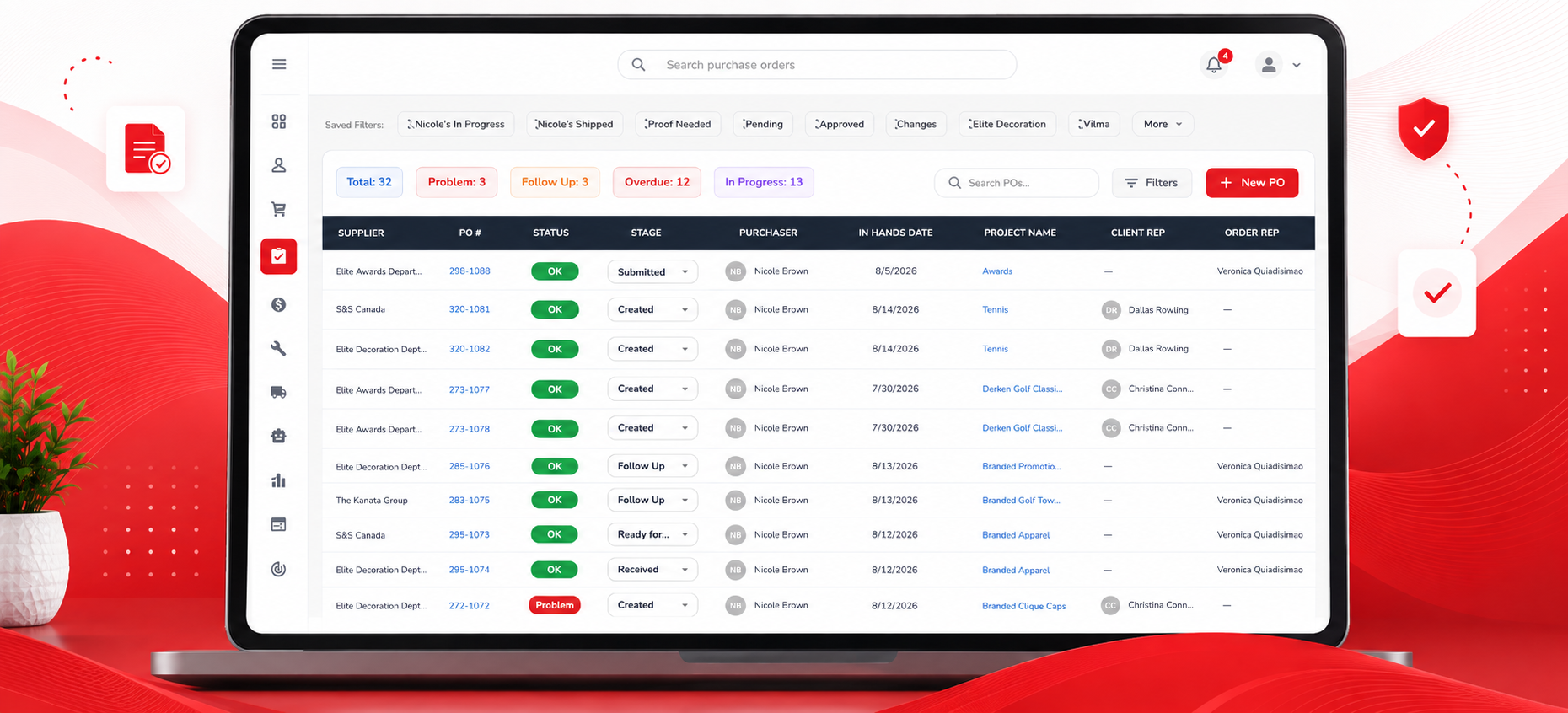
Purchase Order generation converts a purchasing-ready Sales Order into actionable instructions for goods suppliers, decorators, and internal production departments.
The resulting Purchase Orders identify what must be supplied, decorated, shipped, reviewed, and approved. Depending on the products and routes involved, one Sales Order may create one supplier PO, several supplier POs, one or more decorator POs, or a combination of all three.
Generation is only the beginning of the purchasing process. Every resulting PO should be reviewed before it is sent externally or relied on for production.
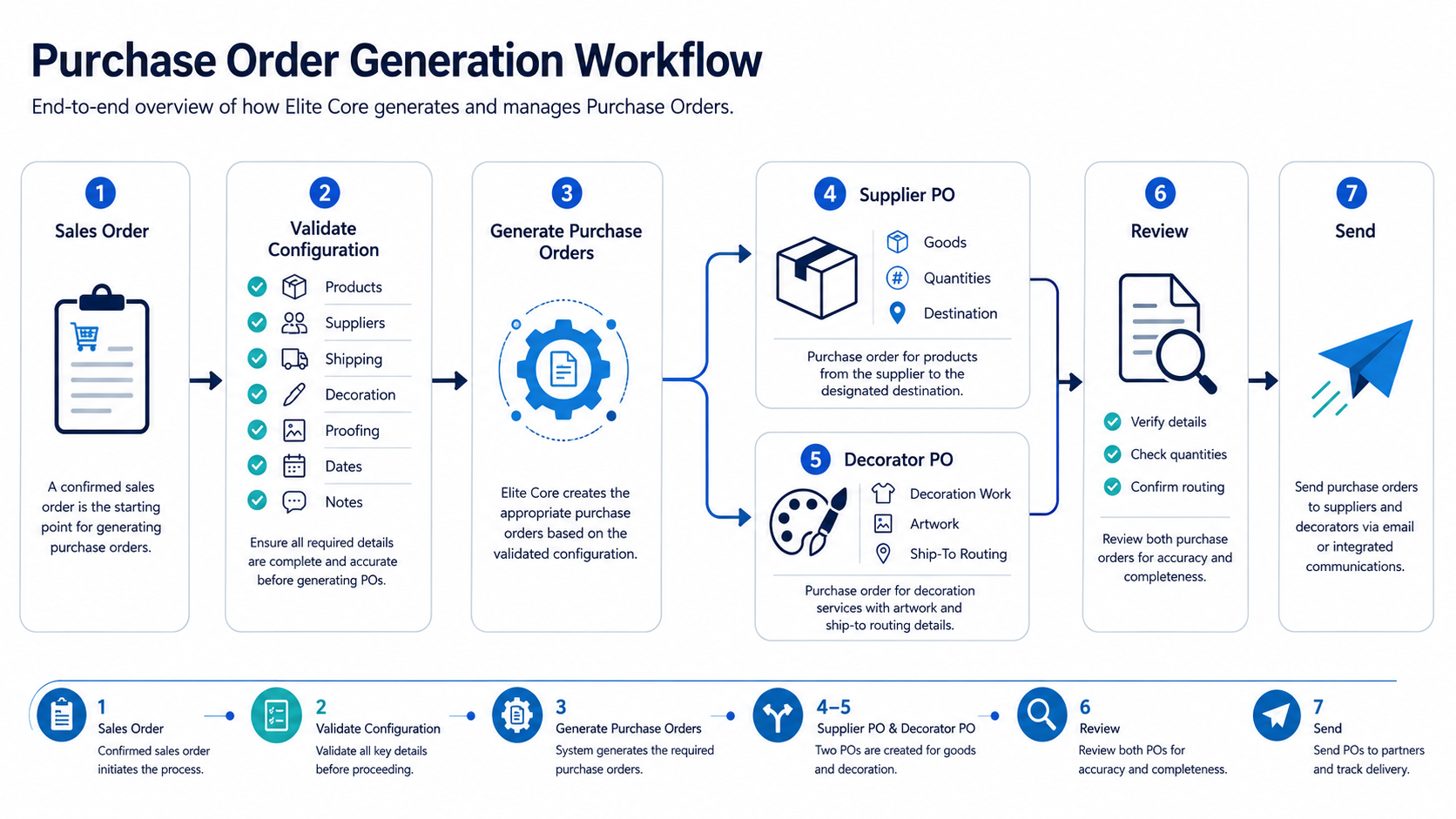
The Core Rule
Elite Core creates Purchase Orders from the products, suppliers, shipping routes, decoration routes, and purchasing details saved on the Sales Order and its related order records.
In practical terms:
- A goods supplier normally receives a supplier PO.
- A separate decorator may receive a decorator PO.
- Different supplier destinations may create separate supplier POs.
- Different decorators may create separate decorator POs.
- An internal Elite department can still receive its own decorator PO.
- The result reflects the saved configuration, not what the user informally intended.
A successful generation message does not guarantee that every Purchase Order is operationally correct.
What Purchase Order Generation Does
Elite Core evaluates the current Sales Order and its related product, shipping, decoration, proofing, and purchasing records. It then creates operational groups for suppliers and decorators.
The process may read information such as:
- Product supplier
- Product, SKU, and variant
- Order Item and quantity
- Unit cost
- Supplier Ship To destination
- Supplier shipping method and account
- Supplier notes
- In-hands date
- Decoration requirement
- Decorator and decoration charge
- Production department
- Decorator Ship To destination
- Decorator shipping method and account
- Proof requirement
- Purchasing representative
- Internal or external routing
Some fields influence grouping, some appear as instructions, and others are required for validation. Review the generated result rather than assuming every stored field affects grouping in the same way.
When a Sales Order Is Ready for Purchasing
Purchase Orders should not be generated merely because a Sales Order exists.
Before generation, confirm that:
- The Sales Order is at the required stage.
- Customer approval is complete where required.
- Deposit or payment requirements are satisfied where required.
- Products, variants, and quantities are final.
- Supplier assignments and costs are current.
- Decorations and decorators are saved.
- Shipping records are complete.
- Proof requirements are understood.
- Required dates are confirmed.
- Internal decorator routing is complete.
- No major cart changes are still awaiting Sales Order regeneration.
The exact status and payment requirements may depend on the company configuration and current workflow.
Where to Generate Purchase Orders
- Open the project.
- Open the applicable Sales Order.
- Navigate to the Purchase Orders and Proofs area.
- Review the listed supplier and decorator requirements.
- Resolve visible warnings.
- Confirm the records expected to generate.
- Use the Purchase Order generation action.
The exact action label may vary with the current interface, but the Purchase Orders and Proofs area is the operational workspace for generation and review.
What Elite Core Reads Before Generation
| Configuration area | Important fields | Why it matters | Common failure |
|---|---|---|---|
| Product | Supplier, Product ID, Order Item, quantity, cost | Defines the goods and vendor | Missing or incorrect supplier |
| Supplier shipping | Ship To, method, account, required date | Defines where goods travel | Missing shipping or unexpected PO split |
| Decoration | Method, charge, decorator | Defines whether decoration work exists | Missing decorator PO |
| Decorator routing | Decorator, production department, Decorator Ship To | Defines who performs work and where goods go afterward | Incomplete internal decorator routing |
| Proofing | Proof requirement, proof records, approval state | Controls whether approval is still needed | Missing or outdated proof |
| Purchasing ownership | Purchasing representative | Defines responsibility and follow-up | PO has no clear owner |
Supplier Purchase Orders
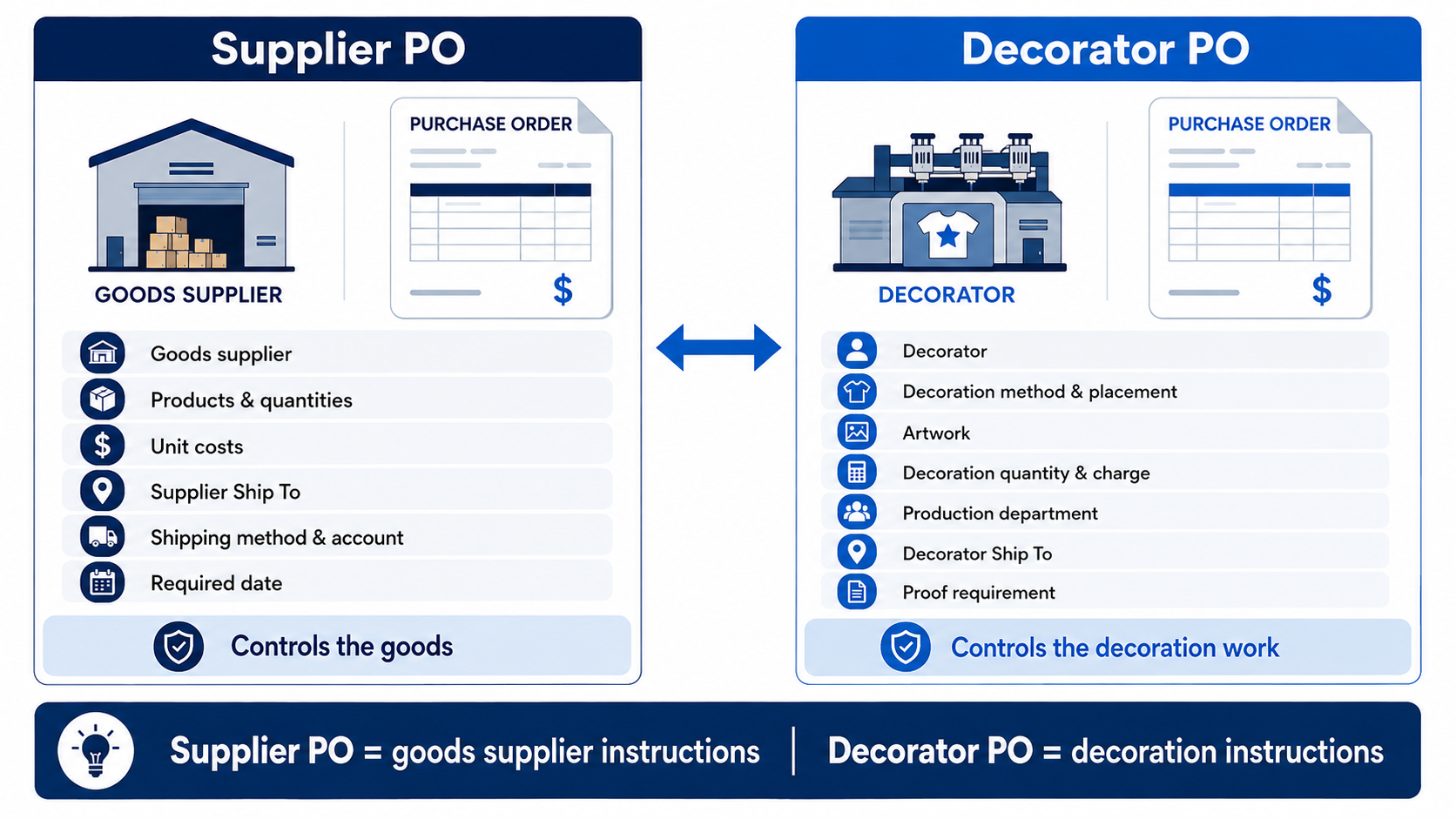
Supplier POs are created for the companies supplying the physical goods.
A supplier PO should normally identify:
- Supplier name
- PO and project numbers
- Product name and SKU
- Variants and quantities
- Unit and extended costs
- Supplier shipping destination
- Shipping method and account
- Required date
- Supplier notes
- Applicable factory instructions
Products from the same supplier may still create separate supplier POs when their Supplier Ship To destinations or physical shipping instructions differ.
Decorator Purchase Orders
Decorator POs are created when decoration work is performed separately from the goods supplier.
A decorator PO may identify:
- Decorator name
- Applicable products
- Decoration method and placement
- Decoration colours and artwork
- Decoration quantity and charge
- Setup charges
- Production department
- Decorator shipping destination
- Required date
- Proof requirement
- Special instructions
The supplier PO tells the goods supplier what to provide and where to send it. The decorator PO tells the decorator what work to complete and where to send the finished goods.
Internal Elite Decorator Purchase Orders
An internal Elite department may still be treated as a decorator for routing and accountability.
Internal work may require:
- A decorator assignment
- A production department
- A saved decoration and charge
- A supplier route to the internal department
- A Decorator Ship To destination
- Proof requirements
- A separate PO record
Internal work should not bypass validation merely because the department is part of Elite.
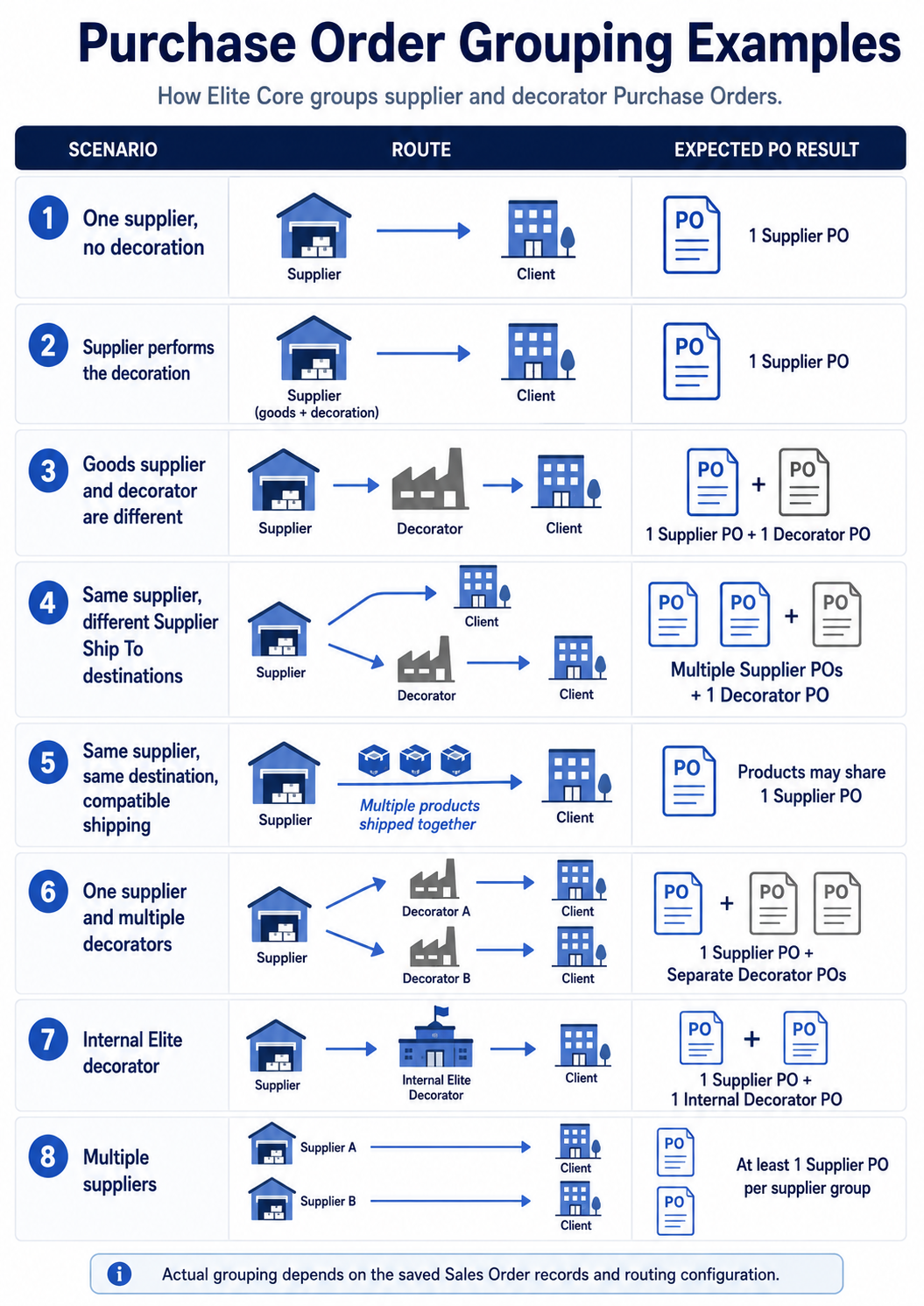
How Purchase Order Groups Are Determined
| Scenario | Expected Purchase Orders |
|---|---|
| One supplier, no decoration | One supplier PO |
| Supplier performs the decoration | One supplier PO when the supplier also performs the work |
| Goods supplier and decorator are different | One supplier PO plus one decorator PO |
| Same supplier, different Supplier Ship To destinations | Multiple supplier POs |
| Same supplier, same destination, compatible shipping | Products may share one supplier PO |
| One supplier and multiple decorators | One supplier PO plus separate decorator POs |
| Internal Elite decorator | Supplier PO plus internal decorator PO |
| Multiple suppliers | At least one supplier PO per supplier group |
The actual result depends on the saved records and current grouping implementation.
Before Generating Purchase Orders
- Confirm the correct Sales Order and status.
- Confirm every product, variant, and quantity.
- Confirm supplier assignments and costs.
- Confirm Supplier Ship To destinations.
- Confirm supplier shipping methods and accounts.
- Confirm decoration requirements.
- Confirm decorator assignments.
- Confirm production departments.
- Confirm Decorator Ship To destinations.
- Confirm proof requirements.
- Confirm in-hands dates.
- Confirm supplier and decorator notes.
- Confirm the purchasing representative.
- Resolve all warnings.
- Confirm no major Sales Order changes are awaiting regeneration.
- Confirm existing POs will not be duplicated.
Step-by-Step Purchase Order Generation
- Open the applicable Sales Order.
- Navigate to Purchase Orders and Proofs.
- Review the products expected to generate POs.
- Review supplier shipping information.
- Review decorator routing.
- Review proof requirements.
- Resolve missing or incomplete information.
- Start Purchase Order generation.
- Allow the PO records to be created.
- Allow PDF generation to complete.
- Review every supplier PO.
- Review every decorator PO.
- Confirm totals and routing.
- Confirm proof requirements.
- Correct errors before sending anything externally.
PDF generation may take longer than the creation of the underlying PO records. Do not repeatedly start generation merely because a PDF is still processing.
What Happens During Generation
- Elite Core loads the Sales Order and related order data.
- Product supplier groups are identified.
- Supplier shipping routes are evaluated.
- Decoration routes are evaluated.
- Decorator groups are created.
- Purchase Order records are created.
- Products, charges, shipping details, dates, and notes are attached.
- Proof context may be associated with the applicable PO workflow.
- PO PDFs are generated.
- The Purchase Orders and Proofs page updates with the result.
The precise internal ordering may vary, but the final records should represent the approved operational route.
Reviewing the Generated Purchase Orders
| Item to review | Why it matters | Example warning sign |
|---|---|---|
| Supplier or decorator | The correct vendor must receive the instructions | Decoration work appears on a goods supplier PO |
| Products and quantities | The PO must match the approved order | Missing product or outdated quantity |
| Costs and charges | Incorrect costs affect bills and margin | Zero, duplicate, or stale charge |
| Shipping destination | Determines the physical route | Goods ship to the client instead of the decorator |
| Required date | Suppliers need a reliable deadline | Old or blank in-hands date |
| Proof requirement | Production may need customer approval | PO shows no proof when approval is required |
| Notes and instructions | Special handling must be communicated | Missing artwork or packing direction |
| Total and currency | The financial commitment must be accurate | Wrong currency or unexpected total |
Reviewing the Purchase Order PDF
Review the PDF separately from the on-screen PO record.
Confirm:
- Company logo and document header
- Supplier or decorator name
- PO and project numbers
- PO date and required dates
- Shipping and billing addresses
- Products, SKUs, quantities, and costs
- Decoration instructions and artwork references
- Notes
- Currency and totals
A valid PDF file can still contain incorrect operational information when the underlying product or routing data is wrong.
Purchase Order Statuses
Use the current PO status to communicate what has happened and what must occur next. Depending on the current Elite Core configuration, statuses may distinguish creation, sending, acknowledgement, production, billing, closure, or cancellation.
Confirm the actual status definitions in the application before relying on them for operational or financial decisions.
Proof Requirements
Generating a Purchase Order does not automatically mean production can begin when a proof is still required.
A PO workflow may include:
- A Sales Order proof carried into the PO context
- A supplier proof added later
- A decorator proof added later
- Customer approval
- Rejection and revision
- Confirmation of the latest approved version
Review How Proofing Works Across Sales Orders and Purchase Orders in Elite Core for the complete proofing workflow.
Purchase Order Representatives and Ownership
Every PO should have clear operational ownership.
The purchasing representative may be responsible for reviewing and sending the PO, following up with the supplier, monitoring proofs, confirming dates, handling changes, and closing the PO. Exact role permissions and responsibilities depend on the current company configuration.
Common Purchase Order Scenarios
There are a range of scenarios based on the cart that can result in a wide arrange of purchase order generation combinations as seen below:
Example 1: One Product with No Decoration
One supplier, one destination, and no decoration normally creates one supplier PO.
Example 2: Product Requires External Decoration
A goods supplier sends the product to an external decorator, and the decorator sends the completed goods onward.
Expected result: One supplier PO and one decorator PO.
Example 3: Same Supplier, Different Destinations
Two products come from the same supplier, but one ships directly to the client while the other ships to a decorator.
Expected result: Two supplier POs and one decorator PO.
Example 4: Internal Elite Decoration
An external supplier sends goods to an internal Elite decorator with a saved production department and complete decorator shipping route.
Expected result: One supplier PO and one internal decorator PO.
Example 5: Multiple Suppliers and Decorators
Products from several suppliers are routed to different decorators and destinations.
Expected result: Multiple supplier and decorator POs based on each operational route.
Troubleshooting Unexpected Extra Purchase Orders
Extra POs commonly result from differences in:
- Supplier
- Supplier Ship To
- Shipping method
- Shipping account
- Required date
- Decorator
- Production department
- Decoration route
- Internal versus external destination
The most common reason products from the same supplier split into separate POs is that their Supplier Ship To records differ.
Review How Shipping Configuration Controls Purchase Order Routing in Elite Core for detailed grouping examples.
Troubleshooting Missing Supplier Purchase Orders
Check for:
- Missing supplier
- Missing product or Order Item relationship
- Deleted or inactive item
- Product excluded from generation
- Missing shipping record
- Invalid supplier source
- An existing PO already associated with the item
- An outdated Sales Order snapshot
- A generation failure
Troubleshooting Missing Decorator Purchase Orders
Check for:
- No saved decoration
- No decorator assignment
- Missing decoration identity or charge
- Missing production department
- Missing decorator shipping
- Missing Decorator Ship To destination
- Incomplete internal routing
- A decoration record not preserved in the Sales Order state
Troubleshooting Missing Shipping Records
Each product expected to generate a PO must have the required shipping context.
Check:
- Order Item ID
- Product ID
- Supplier
- Ship To destination
- Shipping method and account
- Required date
- Deleted items
- Stale Sales Order data
- Products added after document generation
- Products deleted from the live cart but still visible in an older document
A Sales Order snapshot and the live order cart can become misaligned when product changes occur after document generation.
Incomplete Internal Decorator Routing
The message “Internal decorator routing is incomplete for this order item” may summarize several possible missing components.
Check:
- Decorator
- Decoration record and identity
- Decoration charge
- Production department
- Supplier route to the decorator
- Decorator Ship To
- Decorator shipping method
- Decorator destination
- Internal department relationship
Do not add fake routing or decoration data merely to bypass validation.
Products Appearing on the Wrong PO
Review:
- Supplier and decorator assignments
- Supplier Ship To and Decorator Ship To
- Product-to-PO relationship
- Decoration-to-PO relationship
- Sales Order document state
- Regeneration result
- Duplicate or deleted order items
- Internal routing
Old or Stale Information on a PO
Generated documents may reflect a captured Sales Order or PO state.
Potentially stale information includes products, quantities, costs, decorations, artwork, shipping, notes, dates, and proof details.
Changing the live cart does not always guarantee that an existing PO updates automatically.
Regenerating Purchase Orders
Regeneration may be appropriate when the current POs no longer match the approved Sales Order or purchasing configuration.
Possible reasons include changes to:
- Products or quantities
- Supplier or costs
- Decoration or decorator
- Shipping route
- Required date
- Notes
- Proof relationship
- PO grouping
Before regenerating:
- Identify the POs that already exist.
- Confirm whether any PO was sent.
- Confirm whether the supplier acknowledged it.
- Confirm whether production started.
- Check for bills, receipts, shipping records, and proofs tied to the PO.
- Correct the source configuration.
- Regenerate only when operationally safe.
- Review every regenerated PO.
When Not to Regenerate
Do not regenerate solely because:
- A proof was approved or rejected
- A revised proof file was uploaded
- The PDF is still processing
- The page has not refreshed
- The PO was already sent and the change requires a controlled revision
- The underlying source problem has not been corrected
Avoiding Duplicate Purchase Orders
Avoid:
- Clicking Generate repeatedly
- Regenerating while the previous job is still running
- Creating a manual PO before confirming generation failed
- Regenerating without reviewing existing records
- Treating a PDF delay as a missing PO
- Ignoring partially created POs
First confirm whether the PO record exists, whether the PDF exists, whether processing is still underway, and whether only one supplier or decorator group failed.
Before Sending a Purchase Order
- Confirm the supplier or decorator.
- Confirm the PO and project numbers.
- Confirm products and quantities.
- Confirm costs and charges.
- Confirm the shipping destination.
- Confirm the shipping method and account.
- Confirm required dates.
- Confirm decoration instructions.
- Confirm artwork and proof requirements.
- Confirm notes.
- Confirm currency and totals.
- Preview the PDF.
- Confirm the correct contact.
- Confirm the PO has not already been sent.
Recommended Purchasing Strategy
- Configure the Sales Order accurately before generation.
- Resolve warnings before creating POs.
- Review supplier and decorator routes separately.
- Review every generated PO and PDF.
- Confirm proof requirements.
- Avoid unnecessary regeneration.
- Preserve operational history.
- Stop when routing or the approved proof is uncertain.
Practical Rule
Generate Purchase Orders only after the Sales Order accurately reflects how each product will be supplied, decorated, shipped, and approved.
After generation, review every supplier and decorator PO before sending it externally.
Quick Reference
| Question | Recommended action |
|---|---|
| Sales Order ready? | Confirm status, products, costs, shipping, decoration, and proof requirements |
| One goods supplier and no decorator? | Expect one supplier PO |
| Separate decorator? | Expect a supplier PO and decorator PO |
| Same supplier but different destinations? | Expect separate supplier POs |
| Internal Elite decorator? | Confirm decorator, production department, shipping, and destination |
| Extra POs created? | Compare Supplier Ship To and routing details |
| Decorator PO missing? | Check decoration and decorator routing |
| Shipping warning appears? | Confirm the shipping record belongs to the correct Order Item |
| PO shows old information? | Review the document state and regeneration requirements |
| Proof still pending? | Do not assume production can proceed |
| Generation appears incomplete? | Confirm whether PO records or PDFs are still processing before trying again |