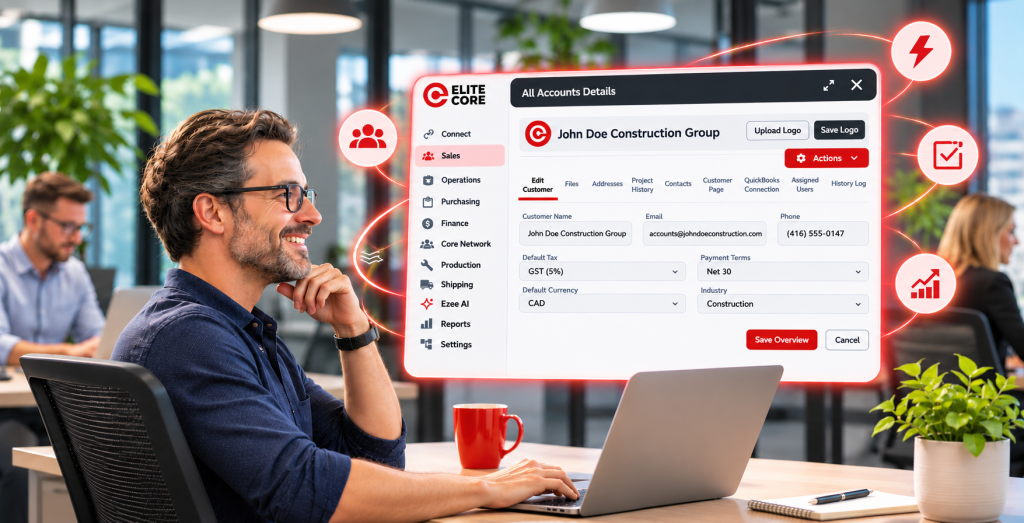
“I built my Estimate, then clicked Sales Order. Why were all my products already there?”
That is a common question when you first use Elite Core, and in most cases it is exactly what should happen. You have not accidentally copied the products or created a second order. You are still working inside the same project.
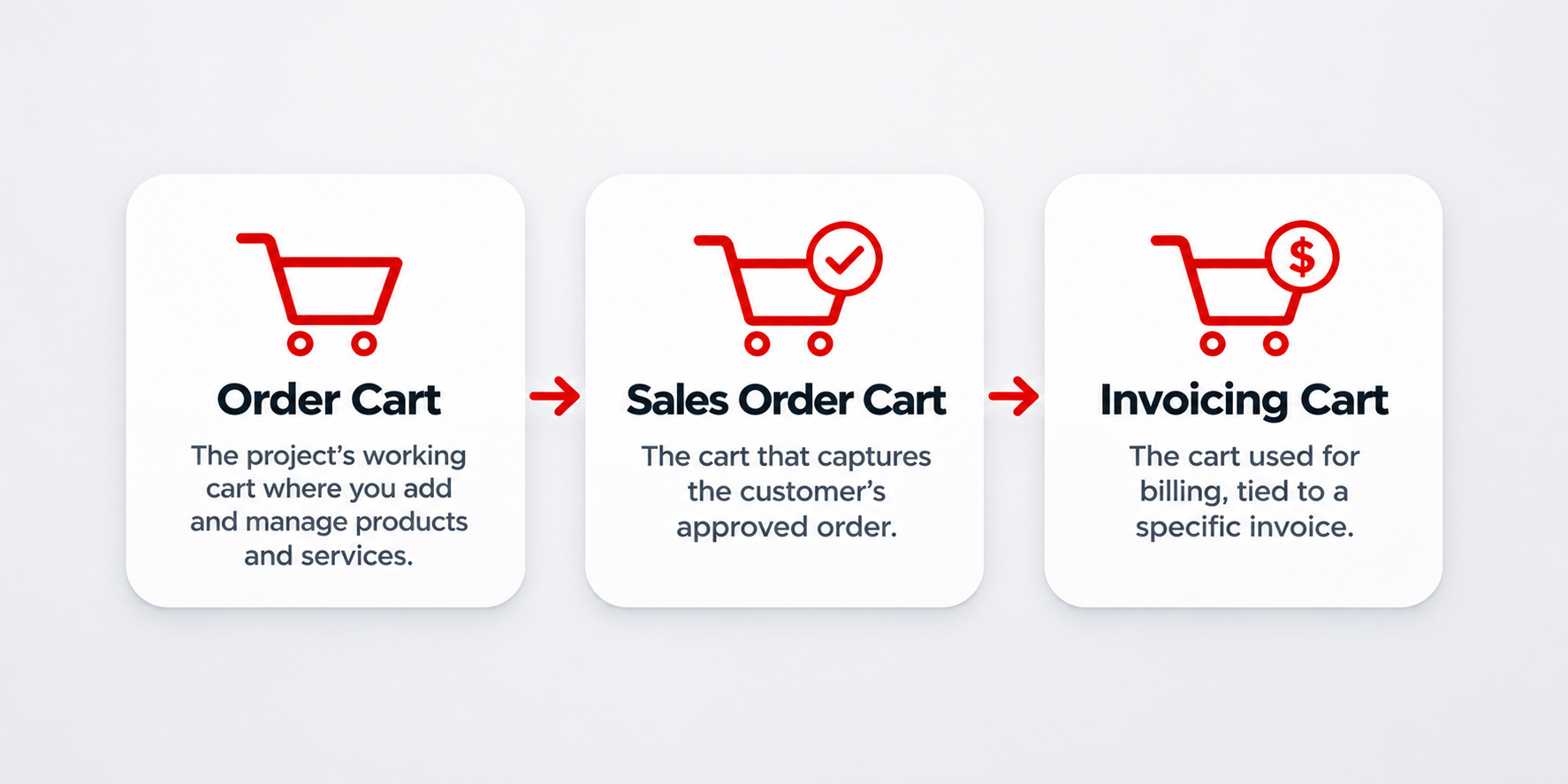
Elite Core uses a project-level Order Cart while you prepare estimates and Sales Orders. Once a Sales Order is approved, it also keeps a separate record of what was approved. Invoicing comes later and has its own invoice-specific cart.
This guide explains the difference, what changes automatically, and what you need to update yourself.
Important to know from the start: Your cart and your generated document are connected, but they are not the same thing. If you change the project Order Cart after generating an Estimate or draft Sales Order, you normally use Regenerate to update that document. After approval, the Sales Order Cart can still be edited. The steps depend on your company's settings: some companies let you edit it immediately, while others require an Unlock first. Some regenerate the Sales Order automatically after a supported save, while others require Regenerate Sales Order to be clicked manually. Both workflows are normal. See how Regenerate works below.
The simple answer: One project, one working Order Cart
Think of the Order Cart as the working list of products and services for a project. It is where you build the job before it becomes a finalized customer agreement.
Your Order Cart can contain products, sizes, colours, quantities, costs, selling prices, decorations, setup charges, freight and other services.
When you open an Estimate or a Sales Order in the same project, Elite Core can use that same working cart to prepare the document. You are not starting a fresh shopping cart each time you change tabs.
Important: The Estimate and Sales Order screens are stages of the same project workflow. They are not separate projects with automatically empty product lists.
What is the difference between the carts?
| What you see | What it means | When you use it |
|---|---|---|
| Order Cart | The project's live working products and services. | Building and changing a quote or preparing a Sales Order. |
| Generated Estimate | A saved customer-facing document made from the selected project information at that time. It is not another live cart. | Reviewing or sending a quote to a customer. |
| Sales Order Cart | The current approved or booked Sales Order contents, tracked separately from the live Order Cart. Authorized users can unlock and revise this cart. | Reviewing the accepted order and making controlled updates as the job progresses. |
| Invoicing Cart | A separate cart tied to an actual invoice, based on the approved Sales Order. | Reviewing or editing the bill for that invoice, where allowed. |
The easiest way to remember this is: Order Cart = what we're working on. Sales Order Cart = what was approved. Invoicing Cart = what we're billing.
What does Regenerate actually do?
Regenerate updates the generated document you are working on. It does not create a new project, duplicate the cart, or simply refresh the page. If a product, quantity, decoration, price or charge has changed after you generated a document, the document you are viewing may still show the earlier information.
To bring the document up to date, open the correct Estimate or Sales Order:
- Regenerate Estimate rebuilds the selected Estimate using the applicable project Order Cart information when regeneration is allowed.
- Regenerate Sales Order rebuilds the selected Sales Order using the appropriate cart. Draft Sales Orders normally use the project Order Cart. Approved or booked Sales Orders can use their separate, editable Sales Order Cart.
For an approved Sales Order, regeneration may be manual or automatic depending on your company's settings. The Sales Order Snapshot Updates setting controls this:
- Manual: Edit the Sales Order Cart, then select Regenerate Sales Order to apply the staged changes to the generated document.
- Automatic: A supported Sales Order Cart change that saves successfully triggers the same regeneration process for you. You normally do not need to click Regenerate separately.
This is separate from whether your company requires an Unlock before editing. Either regeneration mode can be combined with either editing option. Automatic updates apply to supported Sales Order Cart saves, not every project save or every keystroke. If regeneration fails or is blocked, the generated document may still need attention. Always check the current Sales Order after an important change.
After regeneration, open the newly generated document or PDF and check that it shows the changes you intended. Review the products, quantities, pricing, charges, taxes and total. Regeneration creates an updated document revision, not a new set of product lines. It also does not automatically send the revised document to the customer.
Remember: Editing a cart changes the working information. Regeneration updates the generated document to reflect the applicable cart version. Depending on the instance setting, the Sales Order Cart may trigger that regeneration automatically after a successful save. Simply navigating between Estimate and Sales Order, or refreshing your browser, does not regenerate a document. Some sent, historical or otherwise restricted documents cannot be regenerated in their current state.
1. Build the project and its Order Cart
Open the customer's project and add the products you are considering. This is where you complete the actual product details, such as quantities, supplier, colours, sizes, decoration and pricing.
For example, a company asks for 100 embroidered jackets and 50 printed shirts. You add those two product lines to the project, price them and check the decoration details.
At this point, the two products belong to the project's Order Cart. They are not owned by an individual Estimate or Sales Order page.
You can continue working on these lines while preparing the selling documents, subject to your permissions and the project's current status.
2. Create an Estimate from the cart
When you're ready to show the customer a price, go to the Estimate area and create an Estimate using the relevant products and services.
The Estimate becomes its own saved document. It captures the information selected when it was generated, including the customer-facing quantities and pricing.
But generating an Estimate does not empty the Order Cart. The products stay in the project so you can continue working with them. It also does not mean the customer has approved an order.
How to update the Estimate: If you edit the Order Cart after generating an Estimate, the existing Estimate document does not update on its own. Open that Estimate and select Regenerate Estimate when the action is available. This rebuilds what appears on that Estimate from the applicable cart information. Then open the updated Estimate document or PDF and make sure your changes appear before sending it. If the Estimate has already been sent or regeneration is unavailable, follow the appropriate revision workflow instead of assuming the old document has changed.
For a detailed walkthrough, read How to Generate an Estimate in Elite Core.
3. Open Sales Order – why are the same items there?
Now imagine you switch from Estimate to Sales Order within that same project. You see the jackets and shirts already listed.
That is expected. You are still looking at the project information you already entered. Elite Core does not ask you to build the product list a second time just because you're preparing a different sales document.
This is helpful because you should not need to repeat the quantities, costs, supplier information and decoration setup every time the same opportunity moves to another stage.
What should you do? Review the existing items and make sure the Sales Order represents what the client is actually buying. Remove or adjust items only when the customer has changed the scope, not simply because you recognize them from the Estimate.
If you're building a Sales Order from selected products or an earlier document, check which items are included. A saved Estimate and the live project cart can differ if you selected only some products or later changed the project.
The Sales Order page is not the same thing as the Sales Order Cart. A generated draft Sales Order can have a saved document version, but the separate Sales Order Cart view is intended for an approved or booked Sales Order. If you change products or pricing in the working Order Cart after generating a draft Sales Order, use Regenerate Sales Order on the relevant draft document when allowed. That updates what the Sales Order document shows; opening the page again does not.
4. After approval, the Sales Order Cart can still change
Before approval, the project Order Cart is where the job is prepared. Once the Sales Order is approved or booked, Elite Core keeps its own Sales Order Cart and a record of the approved information. This protects the agreed order from unrelated edits to the earlier working cart.
Approved does not mean the Sales Order can never change again. A real order continues through purchasing, production, decorating and shipping. A supplier may run out of stock, the customer may approve a replacement item, the wrong product may have been ordered, a shipment may be incorrect, or freight and decoration requirements may change. It is entirely reasonable for the current Sales Order to be revised when the job changes, provided the necessary approvals and downstream checks are followed.
Why Elite Core works this way: The original approval gives the business a reliable starting point, while revisions let the current Sales Order reflect what is actually going to be supplied and billed. Instead of pretending the order never changes, Elite Core connects the editable Sales Order Cart to an updated Sales Order revision and keeps document history available for review.
On an eligible approved Sales Order, the Sales Order Cart normally opens as the default cart view. It is not always locked. Your company can allow editing right away or require an authorized user to click Unlock first. Independently, your company can decide whether the generated Sales Order updates automatically after a supported successful save or only when someone selects Regenerate Sales Order.
Which steps apply at your company?
There are two separate company settings: Sales Order Cart Editing in Sales Settings controls whether Unlock is required, and Sales Order Snapshot Updates in Financial Configuration controls automatic versus manual regeneration. Here is what each combination means for someone editing an approved Sales Order:
| Cart editing | Regeneration | What you do |
|---|---|---|
| Editable immediately | Automatic | Edit the Sales Order Cart and save your change. A supported successful save automatically regenerates the Sales Order. |
| Editable immediately | Manual | Edit the Sales Order Cart, then select Regenerate Sales Order to update the document. |
| Unlock required | Automatic | Click Unlock, edit and save. A supported successful save automatically regenerates the Sales Order. |
| Unlock required | Manual | Click Unlock, edit, then select Regenerate Sales Order to update the document. |
For example: If your company allows direct editing and automatic updates, you will not need to unlock the Sales Order Cart or click Regenerate after each supported, successfully saved change. Another company may require one or both steps. Neither setup is wrong. Follow what your company has configured, and always review the updated Sales Order document or PDF.
Important: This does not mean every downstream record changes automatically. Existing Purchase Orders, proofs, shipments, invoices and payments may need separate review or controlled revisions. A change affecting what the customer agreed to should also receive the appropriate approval or communication before the revised order is relied on.
5. How to change an approved Sales Order safely
Suppose the client confirms a new freight charge after the Sales Order has already been approved.
- Open the correct project and the current Sales Order.
- Check that you're viewing the Sales Order Cart, not simply the project's Order Cart.
- Check whether the Sales Order Cart is already editable. If your company requires an unlock and the cart is read-only, click Unlock if your role permits it. Otherwise, you can edit directly.
- Make the required change, such as adding a shipping service through Other Services.
- Review the products, charges, taxes and totals.
- After the change is saved, check the instance update mode. In Automatic mode, a supported successful save regenerates the Sales Order. In Manual mode, use Actions → Regenerate Sales Order to apply the staged changes.
- Open the current Sales Order document or PDF and verify that the new freight charge, other line items and total actually appear. If an automatic update did not complete, resolve the issue before treating the document as updated.
The goal is the same in both modes: The Sales Order Cart and the Sales Order document should agree. Manual mode requires a regeneration action; automatic mode runs the same process after a supported successful save. Unlocking alone does not update the document.
If Purchase Orders have already been issued or invoices created, review the downstream impact before making changes. A paid invoice, for example, is not silently rewritten just because a Sales Order total changes.
For more detail, see How to Add Shipping Costs to a Cart and How Sales Orders Work in Elite Core.
6. Where does the Invoicing Cart fit in?
Invoicing is the next important distinction. An invoice is not simply another view of the project's current Order Cart.
Elite Core prepares invoice information from the approved Sales Order. When an actual invoice is created, its Invoicing Cart belongs to that invoice, not to the whole project.
That matters when a customer pays a deposit, receives a partial invoice or is billed for the final balance. Each billing document needs to reflect what the customer is being charged at that point, while the approved Sales Order remains the source for what was ordered.
Simply opening the Invoice tab does not create another project-wide cart or automatically copy the live Order Cart into a new bill. Once you open an existing invoice, Elite Core loads the cart belonging to that invoice.
Depending on invoice status and permissions, its cart may be editable or read-only. Paid and finalized invoices are protected. Editing an invoice-specific cart does not change the approved Sales Order.
Read How Client Invoices Work in Elite Core for deposits, partial invoices, balances and billing details.
7. Follow one example from start to finish
Here's how one fictional project might move through the system:
- Order Cart: You add 100 embroidered jackets and 50 printed shirts.
- Estimate: You create an Estimate for those products. The document is saved, but the project cart still contains both items. If you later revise the cart, use Regenerate Estimate to update the Estimate document when allowed.
- Sales Order: You open Sales Order and see both products. That's normal – you are still using the same project's working information. If a draft Sales Order was already generated, use Regenerate Sales Order when allowed to update that document after changing the cart.
- Client approval: The customer accepts the order. Elite Core records the approved Sales Order contents separately.
- Later change: If a supplier cannot provide the original jackets, you review the approved replacement and update the Sales Order Cart. If your company requires Unlock, do that first. The Sales Order then regenerates automatically after a supported successful save, or you use Regenerate Sales Order manually, depending on your company's settings. Review any affected purchasing and billing records separately.
- Invoice: When it's time to bill, an invoice is prepared from the approved Sales Order and has its own invoice-related cart and history.
There may be several documents attached to the same project, but that doesn't mean you've accidentally created several copies of the original product lines.
Common questions from sales reps
Did Elite Core duplicate my products when I opened Sales Order?
Not just because you opened the tab. Seeing the same products in Estimate preparation and Sales Order preparation is normal because both can use the same project Order Cart. A real duplicate is an additional product line in the cart itself, which is a different issue.
Do I have to re-add products after making an Estimate?
No. The products stay with the project. Review them and update the scope only if needed.
If I change the project cart, does the Estimate automatically update?
No. An already-generated Estimate is a saved document. Review and regenerate its current version when the content needs to change and the workflow allows it.
Does clicking Regenerate update the cart or the document?
It updates the selected generated document using the appropriate cart information and produces a new revision. It does not replace the cart with a new one. Use Regenerate Estimate for an Estimate and Regenerate Sales Order for a Sales Order, then inspect the refreshed document or PDF.
Can I still edit a Sales Order after client approval?
Yes, when your role and the order workflow permit it. Open the Sales Order Cart and edit it. If your company requires Unlock, click Unlock first; otherwise you can edit it immediately. The current document can be revised to reflect genuine purchasing, production, shipping or customer changes. An approved order is an important reference, not a promise that nothing will ever need updating.
Why can some users edit without clicking Unlock?
Companies choose this in Sales Settings under Sales Order Cart Editing. When the unlock requirement is off, an eligible Sales Order Cart is editable immediately. When it is on, the cart starts read-only and an authorized user must unlock it before editing.
Will the Sales Order automatically regenerate when I save?
That depends on your company's Sales Order Snapshot Updates setting. In Automatic mode, a supported successful save of a Sales Order Cart change triggers regeneration. In Manual mode, use Regenerate Sales Order to apply staged changes. The automatic/manual choice is separate from the Unlock requirement. Always check the generated document, especially if a save or regeneration reported an error.
Does changing the project Order Cart update an approved Sales Order?
No. The approved Sales Order has its own Sales Order Cart. To change the current approved Sales Order, update that cart through the permitted workflow and regenerate manually or through the instance setting.
Will changes to my Sales Order automatically update paid invoices?
No. Existing paid invoices are protected. Any additional billing or adjustment should be reviewed through the invoice workflow.
How can I tell which cart I'm viewing?
Look for the cart source label or the Cart View selector in project cart history. Order Cart means live project contents; Sales Order Cart means the approved Sales Order snapshot; Invoicing Cart is tied to an actual invoice.
Before you move on
Before sending an Estimate, Sales Order or Invoice, confirm the right customer and project, the correct products and variants, up-to-date customer pricing, the right charges and taxes, and the document version you actually intend to send.
The rule to remember: Seeing your Estimate items when you open Sales Order is usually correct. You are progressing through one project. A generated document records a version of the order, and the Sales Order Cart can continue to evolve after approval when real-world changes require it. Whether regeneration is manual or automatic, always make sure the current generated Sales Order reflects the intended changes before purchasing, production or billing relies on it.