
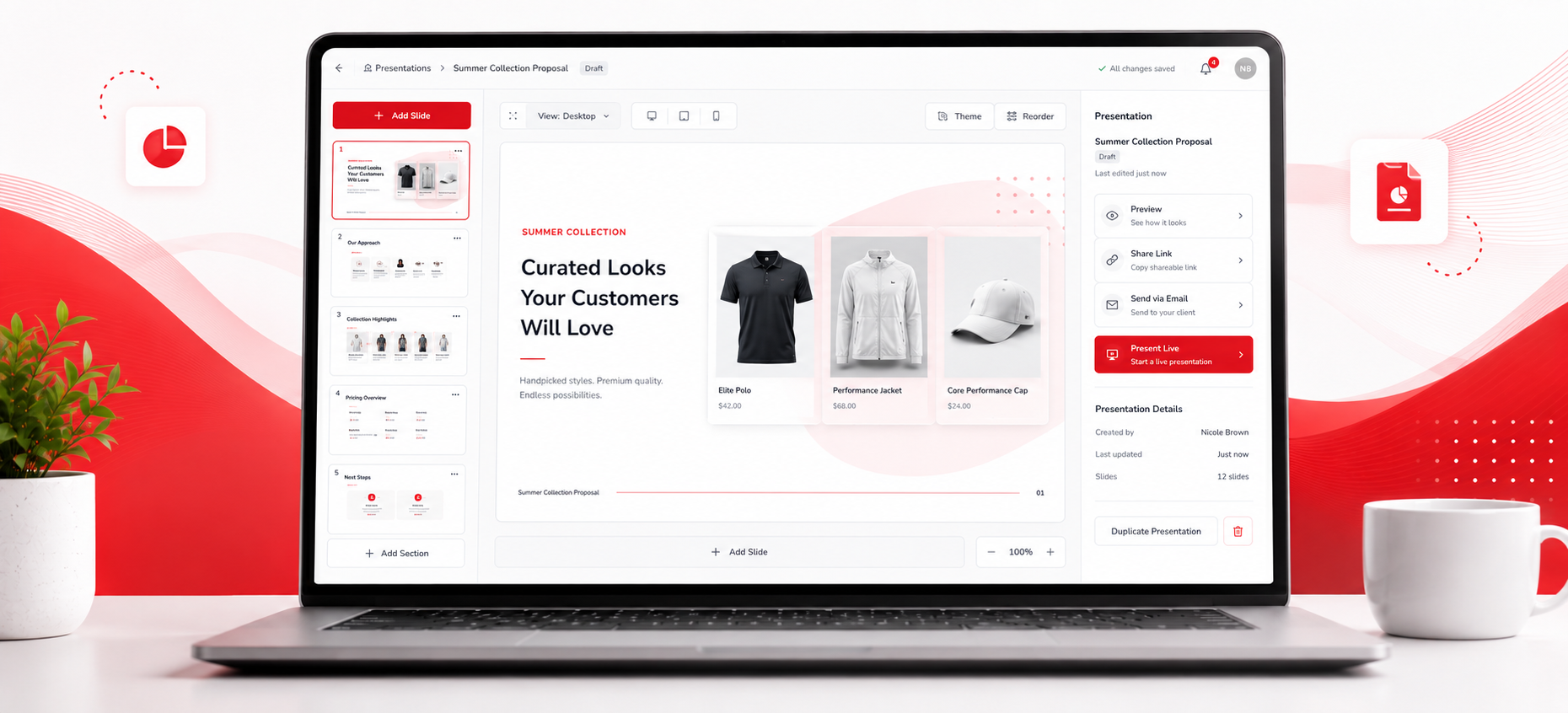
Presentations in Elite Core are designed to help users turn product research into a clear, client-facing recommendation before the project moves into a Sales Order.
A Presentation gives the salesperson a place to collect products, refine client-facing information, organize recommendations, show pricing and options, and share a polished selection with the customer. It sits between early product research and the point where the customer is ready to move forward with an order.
The goal is not simply to show products. A strong Presentation helps the customer understand the recommended options, compare alternatives, review pricing, and make a decision that can later be carried into the Sales Order workflow.
The Core Rule
Use a Presentation to organize and communicate the products and options you want the customer to consider before those selections become an order.
Before sending a Presentation, confirm that the products, images, colours, pricing, notes, and options reflect what you actually intend to propose.
A Presentation is a selling and decision-making document. A Sales Order is the operational record used after the customer decides what to purchase.
What Is a Presentation in Elite Core?
A Presentation is a client-facing collection of recommended products created within a Project.
It can be used to:
- Organize product research
- Present selected products to the customer
- Compare several options
- Show product images and colours
- Include selling prices
- Add client-facing notes and recommendations
- Include setup or additional charges where appropriate
- Refine the selection before creating a Sales Order
Presentations are especially useful when a customer is still choosing between products, colours, quantities, styles, or price points.
Where Presentations Fit in the Sales Process
A typical workflow may look like:
Project
↓
Product Research
↓
Presentation
↓
Client Review and Selection
↓
Sales Order
The Presentation stage gives the salesperson room to curate and revise recommendations before turning them into an operational order.
How to Create a Presentation
- Open the applicable Project.
- Navigate to the Presentation area.
- Create a new Presentation.
- Confirm the customer and project context.
- Enter any required Presentation details.
- Save the Presentation before adding products.
Depending on the current Elite Core interface, the exact field names may vary. The important goal is to create the Presentation inside the correct Project so the product research and later Sales Order remain connected to the same customer opportunity.
What to Confirm Before Adding Products
Before building the product list, confirm:
- Correct Project
- Correct customer
- Purpose of the Presentation
- Target product type
- Approximate quantity
- Budget or selling-price range
- Required date
- Decoration requirements where known
- Important colour or brand preferences
- Any client-specific restrictions
How to Add Products to a Presentation
Products can be added once the Presentation has been created.
Before including a product, review:
- Product name
- Supplier
- Product number or SKU
- Available colours
- Relevant sizes or options
- Product image
- Cost and intended selling price
- Availability where applicable
- Whether the item is suitable for the intended decoration
- Whether the item fits the customer requirement
A Presentation should contain products you are prepared to recommend, not every item returned by a search.
How to Search for Products for a Presentation
Use the product-search workflow to find suitable items for the customer.
Search criteria may include information such as:
- Product name
- SKU or style number
- Supplier
- Category
- Keyword
- Colour
- Product type
When reviewing results, compare both the client-facing appeal and the operational fit.
Consider:
- Does the product match the customer’s request?
- Is the price appropriate?
- Are suitable colours available?
- Can it support the required decoration?
- Does the product image represent the version you want to show?
- Is this a product you would be comfortable moving into a Sales Order?
How to Add a Custom Product to a Presentation
When the required product is not available through the standard product-search process, use the custom-product workflow where supported.
Enter enough information for both the customer and the salesperson to understand what is being proposed.
Typical information may include:
- Product name
- Supplier
- Supplier item number
- Description
- Product image
- Colour or option
- Cost
- Selling price
- Quantity information
- Decoration considerations
- Notes or sourcing details
Custom products should be entered consistently so they can be understood later if the Presentation becomes a Sales Order.
How to Edit Product Information on a Presentation
Presentation product information may need to be adjusted so the customer sees a clear, relevant recommendation rather than raw supplier data.
Client-facing details that may be appropriate to customize include:
- Display name
- Description
- Selling price
- Colour information
- Options
- Notes
- Product image
- Recommendation text
Do not change information in a way that misrepresents the product. The Presentation should simplify and clarify the recommendation while remaining accurate.
How to Add or Change Product Images on a Presentation
Product images are one of the most important parts of a client Presentation.
Use the image that best represents the exact product, colour, style, or configuration being recommended.
Before sending, confirm:
- The image matches the product
- The image is clear and appropriately sized
- The selected colour is represented where possible
- No unrelated supplier image is shown
- A custom image is used when the default image would confuse the customer
Where the current interface allows image selection or upload, use the option that produces the clearest client-facing result.
How to Add Product Colours and Options to a Presentation
Use colour and option information to show the customer which versions of the product are actually being recommended.
Depending on the product, options may include:
- Colours
- Sizes
- Styles
- Materials
- Finishes
- Packaging options
- Other product-specific choices
Avoid displaying irrelevant options when the recommendation has already been narrowed to a smaller selection.
How to Add Product Pricing to a Presentation
Presentation pricing should communicate the expected selling price clearly.
Before entering or showing pricing, confirm:
- Supplier cost is current
- Selling price is approved
- Margin is acceptable
- Quantity assumptions are clear
- Decoration or setup charges are handled appropriately
- Freight assumptions are understood
If quantity breaks or multiple pricing options are supported, make sure the customer can understand what quantity corresponds to each price.
Do not mix prices from different quantity assumptions without clear labels.
How to Add Setup and Additional Charges to a Presentation
Some proposals require charges beyond the base product selling price.
Examples may include:
- Setup charges
- Decoration charges
- Freight estimates
- Artwork charges
- Rush charges
- Packaging
- Personalization
- Other services
Include these charges when they are relevant to the customer’s decision.
Use clear labels so the customer understands whether the charge is per item, per order, estimated, or one-time.
How to Add Notes and Product Descriptions to a Presentation
Notes and descriptions help turn a product list into a recommendation.
Useful client-facing content may include:
- Why the product is being recommended
- Key product features
- Decoration suitability
- Recommended colour
- Suggested use
- Lead-time considerations
- Packaging details
- Important limitations
- Alternative options
Keep notes concise and useful. Avoid internal comments that are not intended for the customer.
How to Reorder Products on a Presentation
Product order affects how the customer experiences the Presentation.
Place the strongest recommendation first unless there is a reason to organize the products differently.
A useful order might be:
- Best overall recommendation
- Best value option
- Premium option
- Alternative style
- Backup option
If the current interface supports drag-and-drop or another reorder control, use it to create a logical client-facing sequence.
How to Remove a Product From a Presentation
Remove products that are no longer appropriate for the customer.
Reasons may include:
- Customer rejected the option
- Price is outside the budget
- Product is unavailable
- Colour options are unsuitable
- Decoration is not practical
- A stronger replacement has been added
Removing a product should not require rebuilding the rest of the Presentation. Review the remaining product order after removal so the document still reads logically.
How to Preview a Presentation
Preview the Presentation before sending it to the customer.
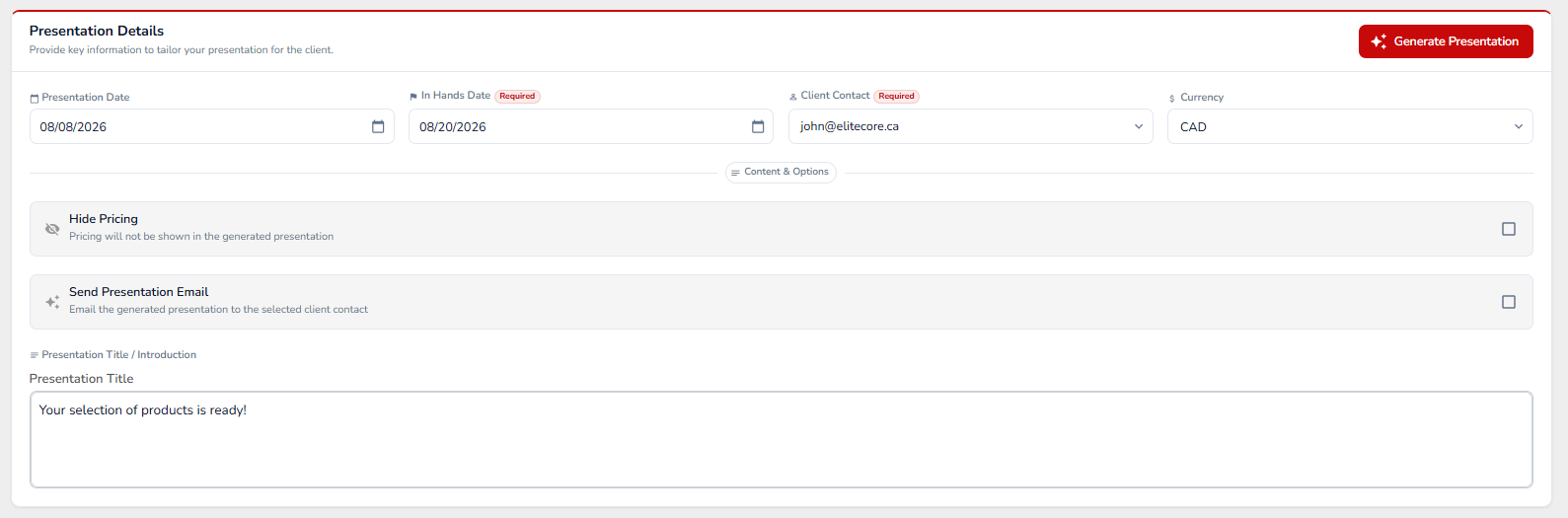
Check:
- Correct customer and Project
- Presentation title
- Product order
- Product names
- Images
- Colours and options
- Descriptions
- Selling prices
- Quantity assumptions
- Setup and additional charges
- Spelling and formatting
- Customer-facing notes
- Any missing or duplicate products
The Preview should be reviewed as if you were the customer seeing the recommendations for the first time.
How to Send a Presentation to a Client
Once the Presentation has been reviewed, use the available client-sharing action to send or share it.
Before sending:
- Confirm the correct customer contact
- Confirm the current Presentation version
- Confirm pricing is ready to be shared
- Confirm product images are correct
- Remove internal-only notes
- Review the email or message where supported
After sending, the salesperson should expect the Presentation to become part of the client decision process. Customer feedback may result in product changes, pricing revisions, option changes, or a final selection.
How to Edit a Presentation After It Has Been Created
Presentations are often revised as the customer’s requirements become clearer.
Common revisions include:
- Adding a new product
- Removing a product
- Changing the product order
- Updating selling prices
- Changing colours or options
- Replacing images
- Updating quantities
- Changing notes or descriptions
- Adding setup or service charges
After making changes, preview the Presentation again before resending it.
If the Presentation has already been shared, make sure the customer understands that the revised version replaces or updates the earlier recommendation.
How to Turn a Presentation Into a Sales Order
Once the customer has selected the products they want to purchase, the project can move from Presentation to Sales Order.
Before creating the Sales Order, identify:
- Which products were approved
- Which colours or options were selected
- Final quantities
- Final selling prices
- Required decorations
- Setup and service charges
- Customer notes
- Required date
- Shipping requirements where known
Where Elite Core supports carrying Presentation information into the Sales Order, confirm that the expected information transferred correctly.
Always review the Sales Order after creation. A client-facing Presentation and an operational Sales Order serve different purposes, so additional purchasing, shipping, decoration, proofing, and production information may still need to be completed.
What Should Carry Forward Into the Sales Order?
Depending on the current Elite Core workflow, information that may carry forward includes:
- Selected products
- Product descriptions
- Colours or options
- Quantities
- Selling prices
- Client-facing notes
- Additional charges
Do not assume every Presentation field automatically becomes operational Sales Order data. Confirm the created Sales Order before moving into purchasing or production.
Common Presentation Mistakes
- Showing too many products without a clear recommendation
- Using incorrect or low-quality images
- Displaying outdated pricing
- Showing colours that are not actually being recommended
- Leaving supplier-facing text in customer descriptions
- Forgetting setup or additional charges
- Sending before previewing
- Keeping rejected products in the final Presentation
- Creating the Sales Order without confirming the customer’s actual selections
Recommended Presentation Strategy
Build Presentations around decisions, not around search results.
Keep a product when:
- It solves the customer’s need
- It fits the budget
- It supports the required decoration
- The colours or options are appropriate
- You are comfortable recommending it
Remove or replace a product when:
- It is not a realistic option
- Pricing is no longer appropriate
- Availability or lead time creates a problem
- The customer has rejected it
- A better alternative is available
Practical Rule
A Presentation should make it easier for the customer to choose.
Use it to narrow product research into a clear recommendation, then review the customer’s final selections carefully before moving those selections into a Sales Order.
Quick Reference
| Question | Recommended action |
|---|---|
| Still researching products? | Use the Presentation to collect and refine suitable options |
| Product not found in standard search? | Add a custom product where supported |
| Default image is misleading? | Select or upload a more appropriate client-facing image |
| Several colours are available? | Show only the options relevant to the recommendation when practical |
| Customer needs pricing? | Confirm selling price, quantity assumptions, and additional charges |
| Presentation feels too long? | Remove weaker products and reorder the strongest options first |
| Ready to send? | Preview the complete Presentation first |
| Customer requests changes? | Edit the existing Presentation and preview the revision |
| Customer has made a selection? | Move the approved products and details into the Sales Order workflow |