
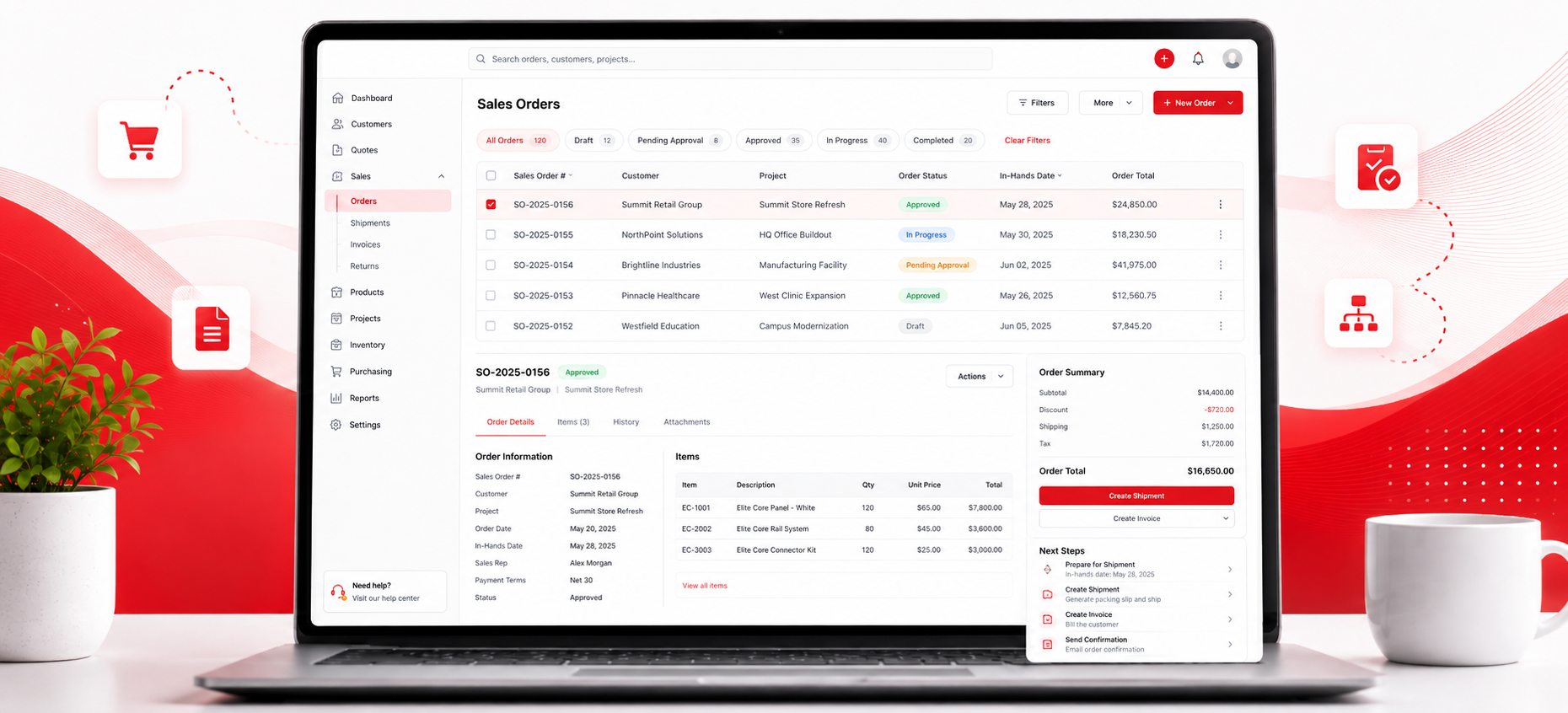
A Sales Order in Elite Core becomes the central operational record for what the client is actually ordering. It brings together the approved products, quantities, colours, sizes, selling prices, costs, charges, taxes, notes, references, dates, decoration details, and other information that downstream teams rely on.
Once the Sales Order is accepted and complete, it becomes an important source record for purchasing, proofing, production, shipping, and invoicing.
The Core Rule
The Sales Order should represent the final commercial agreement with the client as accurately as possible before the order moves into purchasing or production.
In practical terms, confirm that:
- The correct products are included.
- Quantities, colours, sizes, and variants are accurate.
- Selling prices and product costs are current.
- Setup, decoration, freight, and other applicable charges are included.
- Taxes and client references are correct.
- Client-facing and internal notes are stored in the correct places.
- Decoration, artwork, shipping, proofing, and required dates are ready for downstream use.
A Sales Order should not move forward merely because it exists. It should move forward when the information on it accurately reflects what the client approved.
What Is a Sales Order in Elite Core?
A Sales Order records the products and services the client has agreed to purchase. It sits between the selling stage and the operational stages that follow.
A Sales Order may be created from an approved Presentation or another approved selling workflow, or it may be created directly when appropriate.
It becomes the primary reference for:
- Products and variants
- Quantities
- Client pricing
- Estimated or confirmed costs
- Decoration and setup charges
- Shipping and other charges
- Taxes
- Client notes
- Internal notes
- Client PO numbers or references
- Proof requirements
- Purchase Order generation
- Production and fulfillment
- Invoicing
How to Create a Sales Order
- Open the correct Project.
- Open the Sales Order area.
- Create a new Sales Order using the available action.
- Confirm the correct customer and Project.
- Add or confirm the products.
- Enter quantities, colours, sizes, and variants.
- Enter selling prices.
- Enter or verify product costs.
- Add setup, decoration, freight, and other charges where applicable.
- Review taxes.
- Add client-facing and internal notes.
- Add the client Purchase Order number or internal reference when required.
- Review dates, contacts, shipping, decoration, and proofing information.
- Save the Sales Order.
- Review the complete Sales Order before sending or advancing it.
Use the current interface labels shown in Elite Core. Exact button names may vary as the application evolves.
How to Create a Sales Order From a Presentation
When the client has selected products from a Presentation, the approved or selected Presentation can be used as the starting point for the Sales Order.
After conversion, review every transferred field rather than assuming the Presentation and Sales Order are identical.
Confirm:
- Selected products
- Product descriptions
- Images where relevant
- Colours and options
- Quantities
- Selling prices
- Setup or other charges
- Notes
- Decoration details
- Supplier information
- Costs
- Shipping requirements
- Tax treatment
A Presentation is primarily a selling document. A Sales Order must also contain the operational information required for purchasing, production, shipping, and invoicing.
How to Add Products to a Sales Order
Add each product the client is ordering and confirm the operational information for that line.
For each product, review:
- Supplier
- Product name
- SKU or Product ID
- Colour
- Size
- Variant
- Quantity
- Selling price
- Estimated or confirmed cost
- Decoration requirement
- Artwork
- Shipping route
- Required date
Do not rely on a product name alone when the supplier, SKU, colour, size, or variant affects purchasing.
How to Add a Custom Product to a Sales Order
Use a custom product when the required item is not available through the normal product catalogue or search workflow.
Enter enough information for the custom line to function operationally, including:
- Product name
- Description
- Supplier
- Supplier SKU or reference where available
- Colour or variant
- Size
- Quantity
- Selling price
- Cost
- Decoration requirements
- Shipping requirements
- Client-facing details
- Internal purchasing notes
Custom products should be detailed enough that purchasing does not have to guess what was sold.
How to Fill Out a Sales Order Correctly
| Area | What to confirm | Why it matters |
|---|---|---|
| Customer and Project | Correct customer, project, contacts, references | Prevents the order from being associated with the wrong account |
| Products | Correct supplier, product, SKU, description | Drives purchasing |
| Variants | Colours, sizes, options | Ensures the correct physical goods are ordered |
| Quantities | Per size, colour, and variant | Controls buying, production, and billing |
| Selling prices | Approved client price | Controls revenue |
| Costs | Current expected cost | Controls margin and purchasing accuracy |
| Charges | Setup, decoration, freight, miscellaneous | Ensures all commercial components are represented |
| Taxes | Applicable tax treatment | Affects client total and invoicing |
| Notes | Client-facing versus internal | Prevents confidential or operational notes from appearing in the wrong place |
| Client PO | Customer reference or PO number | May be required for client accounts payable |
| Decoration | Method, placement, artwork, decorator | Supports production and Purchase Order generation |
| Shipping | Supplier and decorator routes | Controls downstream PO grouping |
| Proofing | Required proof and approval status | Controls production readiness |
How to Enter Product Quantities on a Sales Order
Enter quantities at the level required to purchase the correct goods.
When a product has multiple sizes, colours, or variants, confirm the quantity for each combination rather than relying only on a total.
For example:
| Colour | Size | Quantity |
|---|---|---|
| Black | Medium | 12 |
| Black | Large | 18 |
| Navy | Large | 10 |
The overall quantity is useful, but purchasing needs the exact breakdown.
How to Enter Colours and Sizes on a Sales Order
Record product variations exactly as they are intended to be purchased.
Check supplier terminology where practical. Similar-sounding colours or size labels may represent different supplier SKUs.
Verify:
- Colour name
- Size
- Style or variant
- Gender or fit where applicable
- Supplier SKU
- Quantity for each variation
How to Enter Selling Prices on a Sales Order
The selling price should reflect the amount the client agreed to pay.
Before sending the Sales Order, confirm:
- Unit selling price
- Quantity break used
- Extended line total
- Included versus separate decoration charges
- Setup charges
- Discounts where applicable
- Currency
- Taxes
Do not assume a price from an earlier Presentation or Estimate is still correct after quantities, product choices, or decoration requirements change.
How to Enter Product Costs on a Sales Order
Product costs represent the expected cost of acquiring the goods.
Accurate costs matter because they influence:
- Gross margin
- Purchasing expectations
- Profitability reporting
- Approval decisions
- Variance review when supplier bills arrive
Review costs after product, quantity, supplier, or currency changes.
How to Add Setup Charges to a Sales Order
Setup charges may apply to screens, digitizing, artwork preparation, tooling, plates, programming, or other one-time production requirements.
Confirm whether the setup charge is:
- Client-facing
- Internal only
- One-time
- Per decoration
- Per location
- Per colour
- Included in another selling price
Avoid charging the client twice when a setup amount is already included in a bundled price.
How to Add Decoration Charges to a Sales Order
Decoration charges should represent the selling price and expected cost of the work applied to the product.
Review:
- Decoration method
- Placement
- Number of colours
- Quantity
- Decorator
- Decoration selling price
- Decoration cost
- Setup charges
- Proof requirement
- Artwork
Decoration information is especially important because it may affect Purchase Order generation and production routing.
How to Add Other Charges to a Sales Order
Other charges may include freight estimates, rush charges, packaging, handling, special delivery, personalization, or other project-specific services.
Before adding a charge, determine:
- Whether it is client-facing
- Whether it is already included elsewhere
- Whether it belongs to the product, decoration, shipping, or general order
- Whether it is taxable
- Whether it should also carry an internal cost
How Taxes Work on Sales Orders
Taxes should reflect the applicable customer, jurisdiction, delivery, exemption, and company configuration.
Before approval, review:
- Taxable products and charges
- Customer tax status
- Applicable jurisdiction
- Shipping tax treatment
- Exemptions where applicable
- Total tax amount
Do not manually override tax treatment without understanding why the system calculated it differently.
How to Add Client Notes to a Sales Order
Client notes are intended for information the customer may see on the Sales Order or related client-facing communication.
Appropriate examples include:
- Approved special instructions
- Delivery expectations
- Product clarifications
- Client-facing production notes
- Terms or conditions that apply to the order
Do not place confidential pricing strategy, internal margin discussion, supplier criticism, or private operational comments in a client-facing field.
How to Add Internal Notes to a Sales Order
Internal notes are for information needed by the Elite team but not intended for the client.
Appropriate examples include:
- Supplier follow-up instructions
- Internal routing details
- Margin or pricing context
- Production concerns
- Billing instructions
- Internal approval information
- Account-specific handling requirements
Write internal notes clearly enough that another team member can understand the required action.
How to Add a Client Purchase Order Number
Enter the client’s Purchase Order number, requisition number, department code, or other reference in the designated customer-reference field when required.
This reference may be important for:
- Client approval
- Accounts payable
- Invoice matching
- Department allocation
- Contract compliance
- Customer reporting
Confirm the reference before invoicing when the customer requires it.
How to Review a Sales Order Before Sending It
- Confirm the correct customer and Project.
- Confirm every product.
- Confirm supplier and SKU information.
- Confirm colours, sizes, and variants.
- Confirm quantities.
- Confirm selling prices.
- Confirm costs and margins.
- Confirm setup charges.
- Confirm decoration charges.
- Confirm other charges and freight.
- Confirm taxes.
- Confirm client notes.
- Confirm internal notes are not client-facing.
- Confirm the client PO number or reference.
- Confirm decoration and artwork.
- Confirm shipping information.
- Confirm proof requirements.
- Confirm required dates.
- Confirm contacts.
- Review the document or PDF before sending.
How to Send a Sales Order to a Client
Once the Sales Order has been reviewed, use the available client-send or approval workflow.
Before sending:
- Confirm the correct customer contact.
- Preview the Sales Order.
- Confirm prices and taxes.
- Confirm notes and terms.
- Confirm the client reference.
- Confirm no internal-only information is exposed.
After sending, confirm that the send was recorded and monitor the order for the next approval or status change.
How to Edit an Existing Sales Order
Sales Orders may need changes when the client revises quantities, products, decoration, pricing, dates, or other requirements.
The further the order has progressed, the more carefully edits should be managed.
Before editing, check whether the Sales Order has already resulted in:
- Customer approval
- Purchase Orders
- Supplier commitments
- Proofs
- Production work
- Shipping records
- Bills or invoices
Changing the Sales Order does not necessarily mean every downstream record updates automatically. Review connected records after material changes.
Understanding Sales Order Statuses
Sales Order statuses communicate where the order is in the workflow and what action may be required next.
The exact status names and permissions should be confirmed in the current Elite Core application.
| Status concept | Typical meaning | Typical action |
|---|---|---|
| Draft | Order is still being prepared | Complete and review the Sales Order |
| Sent or Awaiting Approval | Client review is pending | Monitor for response |
| Approved | Client has accepted the order | Confirm operational readiness |
| Purchasing or Production | Downstream work has begun | Control changes carefully |
| Completed or Closed | Operational work is substantially complete | Confirm billing and closure |
| Cancelled | Order will not proceed | Review and resolve connected records |
Use the actual status labels shown in the current application rather than relying only on this conceptual guide.
How to Cancel a Sales Order
Cancel a Sales Order when the client no longer intends to proceed and cancellation is operationally appropriate.
Before cancellation, review:
- Client approval history
- Purchase Orders
- Supplier commitments
- Decorator commitments
- Proofs
- Production activity
- Shipping records
- Deposits or payments
- Supplier bills
- Client invoices
Cancellation of the Sales Order does not automatically mean every connected obligation disappears. Resolve or cancel downstream records according to their actual state.
Common Sales Order Mistakes
- Incorrect supplier or SKU
- Missing colour or size breakdown
- Outdated quantity
- Presentation pricing copied without rechecking
- Missing product cost
- Duplicate setup or decoration charges
- Wrong tax treatment
- Internal notes entered as client notes
- Missing client PO number
- Incomplete decoration or shipping routing
- Editing the Sales Order after POs exist without reviewing downstream records
Recommended Sales Order Strategy
- Treat the Sales Order as the operational source of truth for what the client ordered.
- Review transferred information after creating a Sales Order from a Presentation.
- Record variants and quantities precisely.
- Keep selling prices and costs separate and current.
- Use the correct field for client-facing and internal information.
- Confirm tax and client-reference requirements before sending.
- Review the Sales Order before advancing to purchasing.
- Control edits carefully after downstream records exist.
Practical Rule
If purchasing, production, shipping, or invoicing would make a different decision because a Sales Order field is wrong, correct that field before the order moves forward.
Quick Reference
| Question | Recommended action |
|---|---|
| Presentation approved? | Create or update the Sales Order and verify transferred information |
| Product not in catalogue? | Add a detailed custom product |
| Multiple sizes or colours? | Enter the exact quantity by variant |
| Client price changed? | Update the selling price and review totals |
| Supplier cost changed? | Update cost and review margin |
| Setup or decoration applies? | Add the appropriate charge without duplicating bundled pricing |
| Client requires a PO number? | Enter the reference before invoicing |
| Order already has POs? | Review downstream records before making material edits |
| Client cancels? | Cancel the Sales Order only after reviewing connected commitments and financial records |
Related Knowledge Base Articles
- How Presentations Work in Elite Core: From Product Research to Sales Order
- How to Add Products to a Project in Elite Core
- How to Add Product Variants, Colours, Sizes and Quantities in Elite Core
- How to Enter Product Costs and Customer Pricing in Elite Core
- How to Add Decorations and Artwork in Elite Core
- How to Add Setup Charges, Shipping and Other Services in Elite Core
- How Proofing Works Across Sales Orders and Purchase Orders in Elite Core
- How to Generate and Review Purchase Orders in Elite Core